First launch
What you see the first time you open Beam Bench.
When you launch Beam Bench for the first time, you land in an empty workspace.
The startup promotion appears on every launch. Close it with the X to use the workspace. Its previews are bundled with Beam Bench, so it does not need a network connection to finish opening the app.
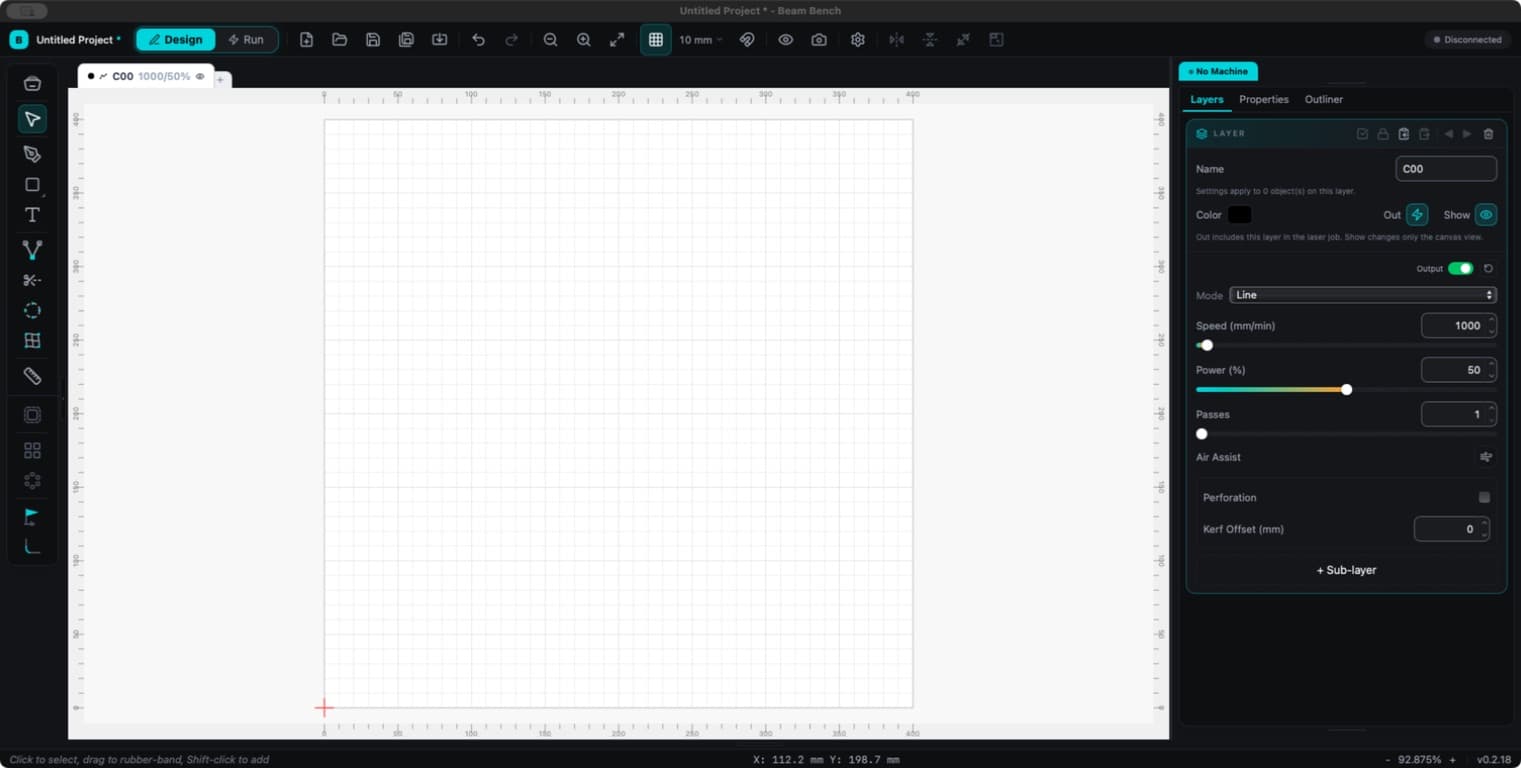 Design with no machine connected. App appearance and canvas background can be configured separately.
What you see
- A central canvas showing the workspace bed and grid. Its dimensions follow the active project and machine setup.
- Toolbars along the top and left edges, with shape and editing tools.
- Layer tabs directly above the canvas. Each tab shows its layer color, mode, and settings summary.
- Design panels docked on the right. Layers, Properties, and Outliner share the default dock.
- Rulers along the top and left edges of the canvas, showing positions in millimeters by default.
- Disconnected status near the top right. Switch to Run for machine controls.
What just happened
Beam Bench created a default project at default machine bed dimensions and a default layer setup. Nothing has been saved yet. The title bar shows the project as unsaved.
The default panel layout assumes a reasonably wide window. If panels look cramped, drag them to another dock or float them, or hide ones you do not need from the Window menu.