Macros
User-defined G-code sequences with optional hotkeys. Save common command groups for one-click execution.
Macros let you bundle a sequence of G-code commands and either click a button or press a hotkey to send them to the machine. Useful for repeated machine maintenance, calibration sequences, or any operation that takes more than one command and you do not want to retype.
Opening it
- Default location: middle-right in Run
- Visible by default: yes
- Hotkey: no default
What you see
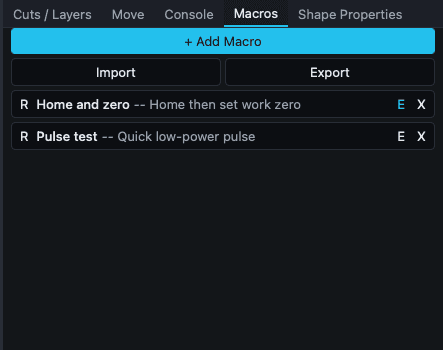 Two example macros: "Home and zero" and "Pulse test".
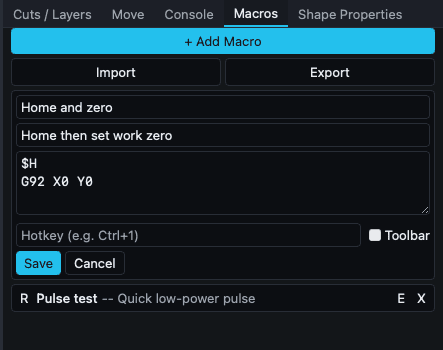 The inline edit form for a macro.
A scrollable list of macros. Each macro displays its name, optional description (prefixed --), and optional hotkey (in [brackets]). Three icon buttons on each row:
| Button | Title | Action |
|---|---|---|
| R | Run | Send the macro's commands to the connected machine. |
| E | Edit | Open the inline edit form for this macro. |
| X | Delete | Remove the macro. |
Above the list, three action buttons:
- + Add Macro: creates a new macro named New Macro with empty commands.
- Import: load a
.jsonfile of macros from disk. - Export: save all current macros to a
.jsonfile.
When you click E on a macro, the row expands into an edit form:
| Field | Type | Notes |
|---|---|---|
| Name | text | Macro name. |
| Description | text (optional) | Short hint shown next to the name in the list. |
| G-code (one command per line) | textarea | One command per line. Empty lines are stripped on save. |
| Hotkey (e.g. Ctrl+1) | text (optional) | Keyboard shortcut. Conflicts are detected on save. |
| Toolbar | checkbox | Show this macro as a button on the main toolbar for one-click access. |
Below the form: Save and Cancel.
If you try to switch to another macro with unsaved edits, an amber banner appears with Keep Editing and Discard.
What you can do
Create a macro
- Click + Add Macro.
- The new macro enters edit mode automatically.
- Set the name, optionally a description.
- Type your commands in the textarea, one per line. Example for a homing sequence:
$H G92 X0 Y0 - Optionally set a hotkey (e.g.
Ctrl+1) and check Toolbar if you want quick access. - Click Save.
Run a macro
- Click R on the row.
- Or press the assigned hotkey (works from anywhere in the app, not just this panel).
- Or click the macro's button on the toolbar if Toolbar is enabled.
The commands send to the machine in order with no intermediate confirmation. Make sure they are safe.
Edit a macro
Click E, change what you want, Save. If you click E on a different macro while editing one with unsaved changes, you get the Keep Editing / Discard banner.
Share macros between machines
Export writes a JSON file. Import reads one. Useful for sharing calibration sequences with other users or copying your setup between computers.
Behavior worth knowing
- Hotkey conflicts are checked on save. Conflicts against built-in app hotkeys (Ctrl+Z, Ctrl+C, Esc, etc.) and against other macros are both rejected. The validation message appears in red below the input.
- The set of reserved built-in hotkeys includes the common edit/file/selection combinations plus single-letter tool shortcuts (V, M, N, P, L, R, T, E, H, B). You cannot reuse those.
- Commands send asynchronously. If the machine is not connected, run requests fail silently.
- Macros are stored as a JSON array of objects; the Description and Hotkey fields are optional.
Related
- Console: test your commands one at a time before saving as a macro
- Hotkey Editor dialog
- Hotkeys reference: the built-ins your macros cannot conflict with
- GRBL essentials