The workspace
Design, Run, panel docks, and the controls around the canvas.
Beam Bench has two workspaces. Design is for drawing and arranging artwork. Run is for placing and sending a job to the machine. Switching modes keeps the same project open.
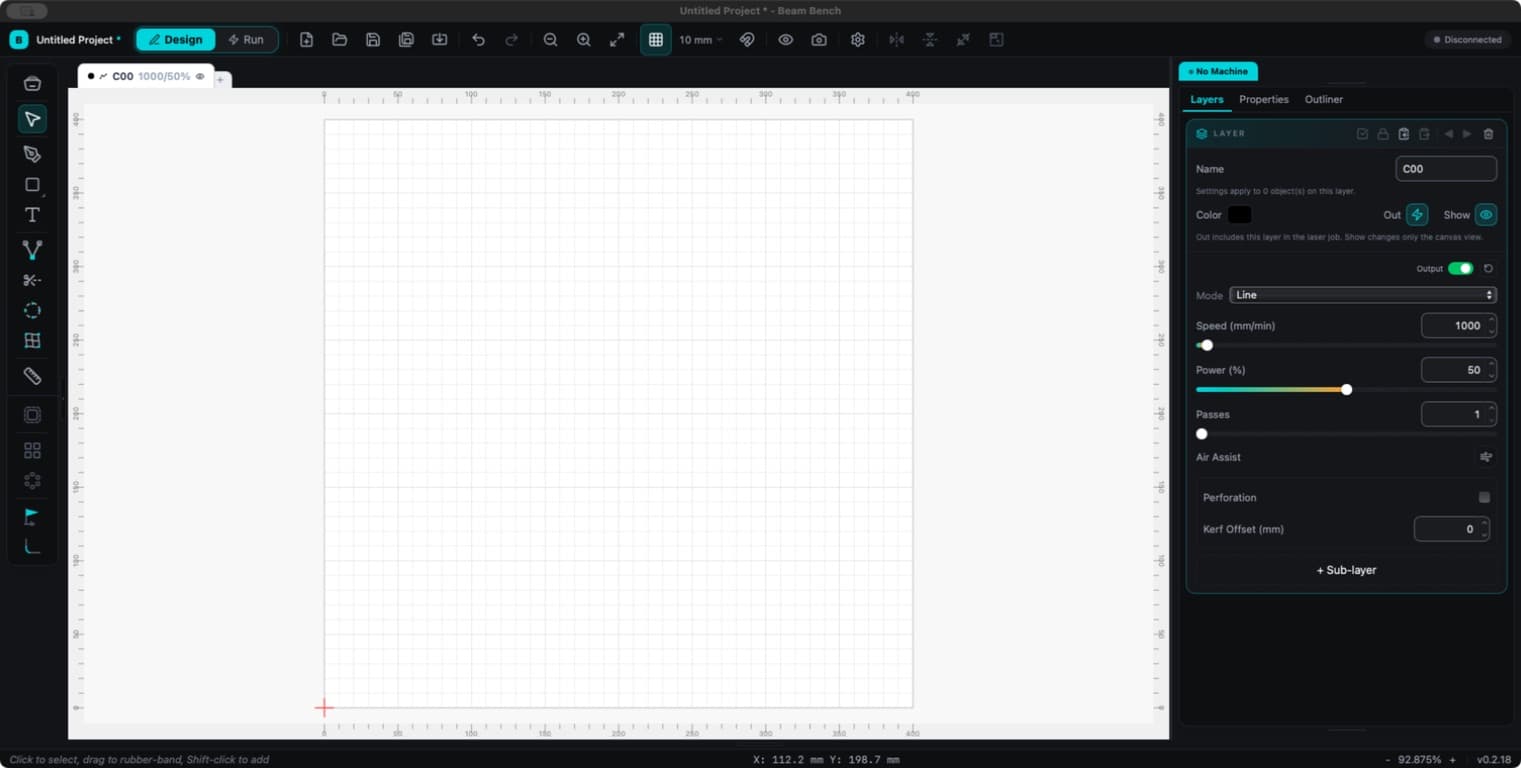
Design
- The canvas shows the project workspace, with rulers and a grid in your chosen display unit.
- The left toolbar contains drawing and editing tools. Some buttons open related tool choices.
- Layer tabs sit above the canvas. Select a tab to edit its settings, or right-click it for layer actions.
- Layers, Properties, and Outliner share the default right dock. Layers controls processing; Properties controls the selection or active tool; Outliner shows the project hierarchy.
- The main toolbar provides file actions, undo, zoom, grid, snapping, Preview, and device settings.
Position, size, rotation, text options, and contextual tool controls now live in Properties. Older guides may call this the Properties Toolbar.
Run
Run starts with Move on the left, Laser Control at the upper right, and Camera, Macros, and Console in another right dock. Machine controls depend on the connected controller's capabilities.
Open Preview to inspect the planned output before starting. The canvas is an editing view; its appearance alone does not tell you which objects will run.
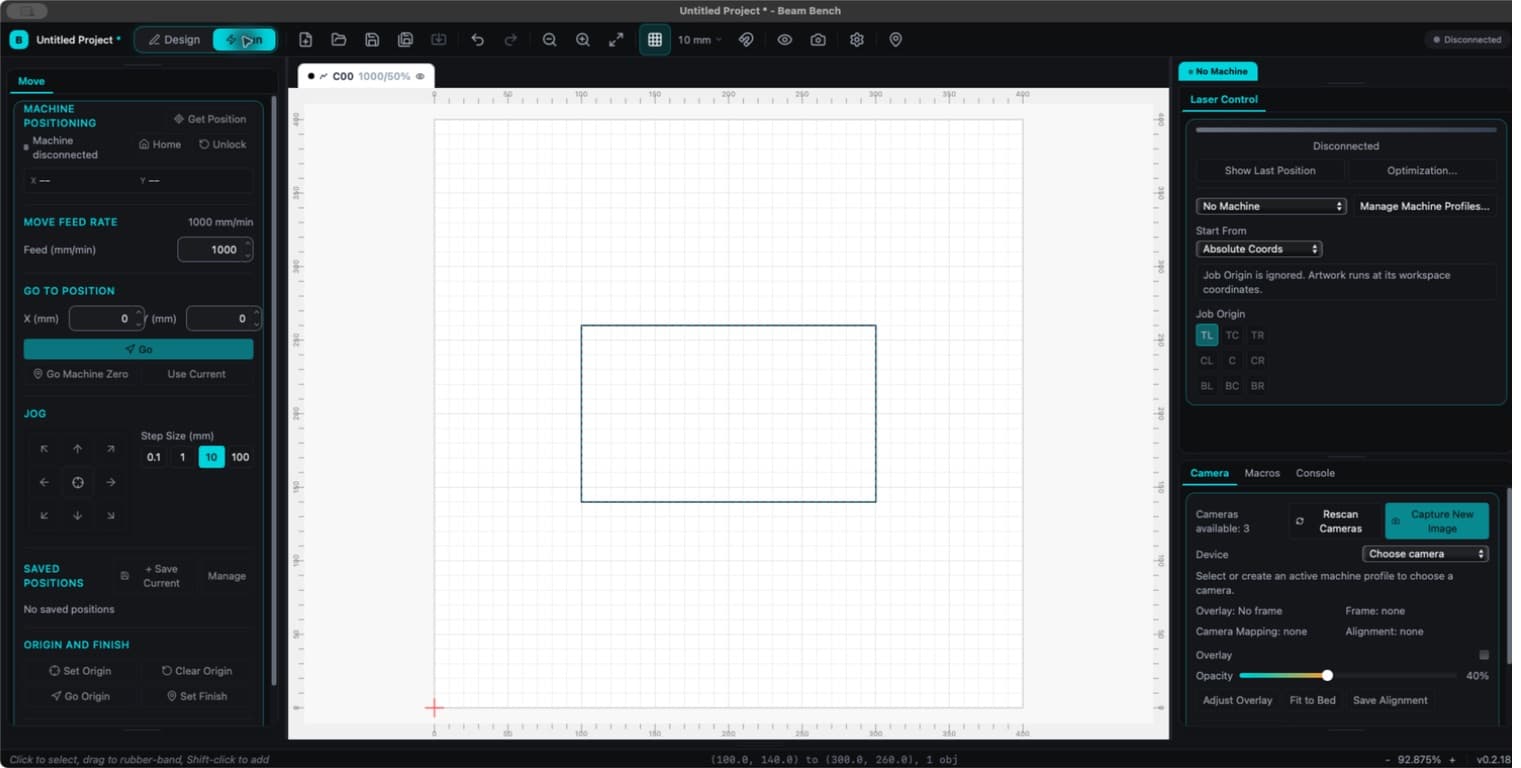
Rearrange panels
Drag panel tabs between docks, or use a tab's context menu to move, float, or close a panel. The left and right columns can each contain up to three stacked docks. Drag their dividing seams to resize them. Reopen panels from Window.
Design and Run remember separate arrangements across launches. Window > Reset Layout restores the layout. Arrange > Dock aligns artwork and does not manage panels.
Navigate the canvas
- Pan with middle-mouse drag or Space plus left drag.
- Scroll to zoom. The wheel behavior can be changed in Display settings.
- Use
Ctrl+0to fit the page andCtrl+Shift+Ato frame the selection on screen.
See keyboard shortcuts for platform conventions and custom bindings.