Measure
Measure distances, angles, radii, and gaps without changing artwork.
Activate Measure from the left toolbar or press Ctrl+M. Results and controls appear in Properties, with an overlay on the canvas.
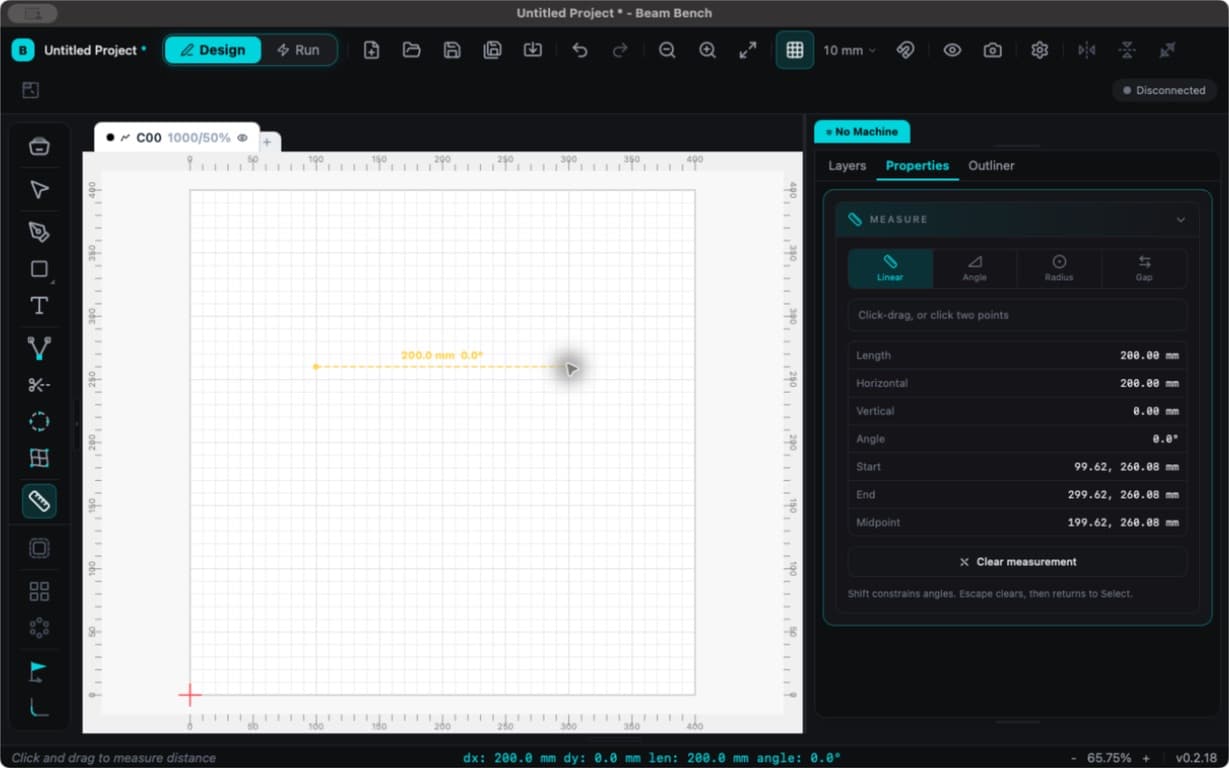
Choose a mode
| Mode | How to use it | Result |
|---|---|---|
| Linear | Drag between two points, or click the first point and then the second. | Length, horizontal and vertical distance, angle, endpoints, and midpoint. |
| Angle | Click two segments. | Angle and the two segment lengths. |
| Radius | Click a circle or ellipse. | Radius, diameter, and center. Ellipses show separate X and Y values. |
| Gap | Click two objects. | Closest gap, plus horizontal and vertical gaps. |
Hold Shift while measuring a line to constrain its angle. Hover artwork to inspect the available object or segment metrics.
Keep and copy a result
A completed measurement stays visible after you release the mouse. Click a result value in Properties to copy it. Use Clear measurement to remove the result.
Escape clears an active measurement first. Press Escape again to return to Select. Measurements are inspection aids, not cuttable objects or permanent project annotations.
Distances follow your display unit. Measure does not change the artwork.