Properties
Edit selection transforms, object settings, and contextual tool options.
Properties adapts to the selection and active tool. Open Window > Properties or select Properties in Design's default right dock.
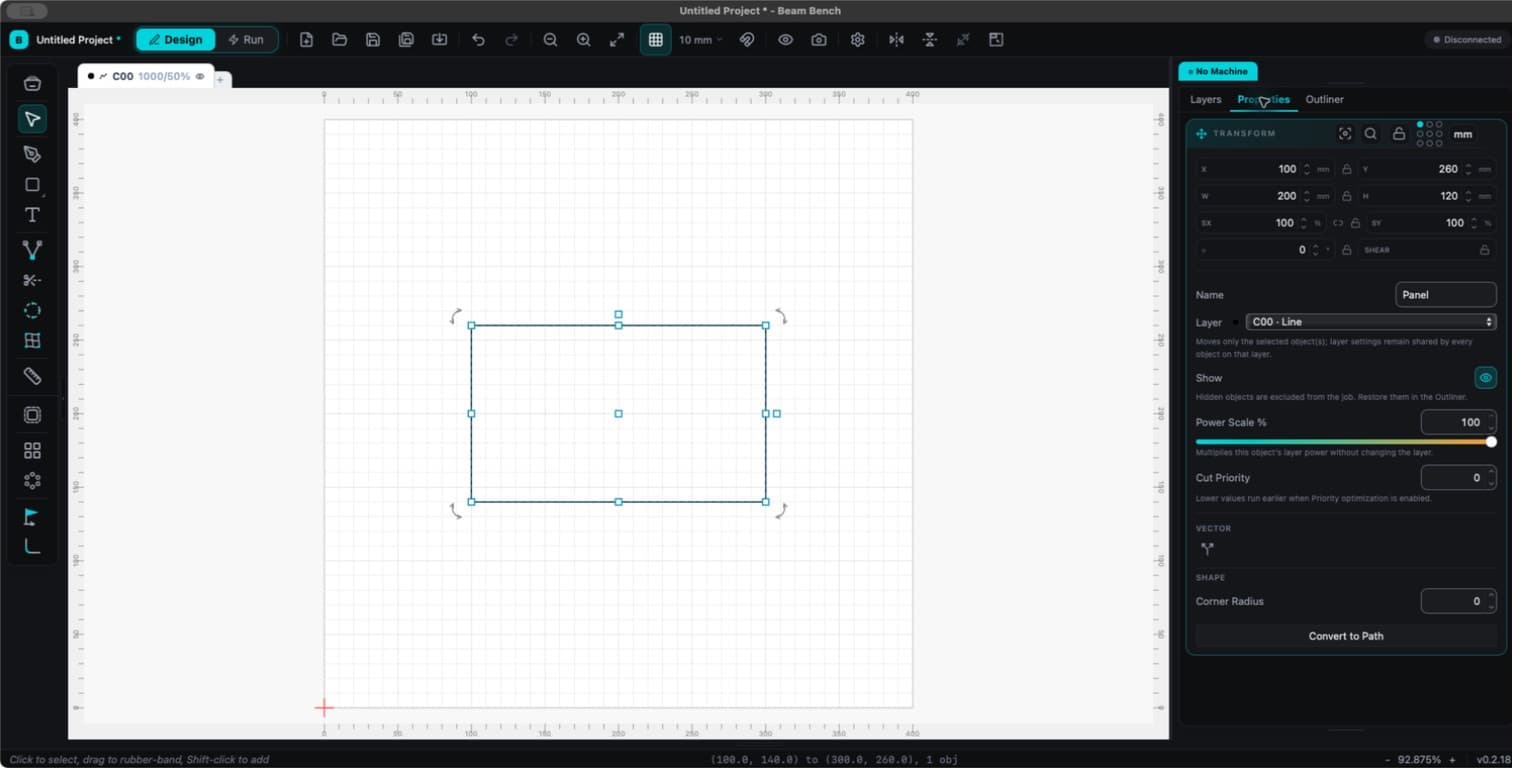
Position and size
The transform section contains X, Y, Width, Height, percentage scale, rotation, an aspect-ratio lock, and a nine-point reference grid. It works with one object or a selection of objects.
Choose a reference point, then enter X and Y to place that point precisely. The choice stays selected through imports and selection changes in the current session. It is separate from the machine's Job Origin and is not saved across app restarts.
The aspect-ratio lock keeps proportions when resizing. New raster imports have it enabled by default. Locked artwork cannot be transformed until unlocked.
One object
- Name identifies the object in the Outliner.
- Layer moves it to another layer. Layer processing settings remain shared with the other objects on that layer.
- Show controls object visibility. Hidden objects are excluded from output and can be restored in the Outliner.
- Power Scale % multiplies the layer power for this object, from 0 to 100 percent.
- Cut Priority affects ordering when Priority optimization is enabled. Lower values run earlier.
Shape-specific controls appear for rectangles, polygons, stars, text, and images. Use Text for typography and text shapes, or Adjust Image for image processing.
Convert to Path turns a parametric shape or text into vector geometry. The original shape or text controls are lost after conversion, but the action can be undone.
Multiple objects
Properties shows selection transforms, a shared Layer control, visibility, and alignment or arrangement actions. Mixed values indicate that the objects have different settings.
Compatible vector selections expose Union, Subtract, Reverse Subtract, Intersection, and Exclude. The available actions depend on the selection. An image selected with suitable closed vector shapes can use those shapes as an image mask.
Active tools
Properties also hosts controls for Text, Node Edit, Measure, Radius, Tabs, Warp, and supported modifiers. With nothing selected, an active tool may still have controls here. With Select active and no selection, the panel shows an empty-selection hint.
Locking and output
Locking protects artwork from edits. It does not remove that artwork from a laser job. Hide the object or disable its layer's Output to exclude it. A layer's Show control only changes the canvas display.