Anahat
Proje hiyerarşisindeki çizimleri bulun, yeniden adlandırın, yeniden sıralayın, gizleyin ve kilitleyin.
Anahat; katmanları, grupları ve nesneleri listeler. Üst üste binen çizimleri bulmak ve tuvalde gizlenmiş nesneleri geri getirmek için kullanışlıdır.
Pencere > Anahat seçeneğini açın veya Tasarımın varsayılan sağ sabitleme alanında Anahat seçeneğini belirleyin.
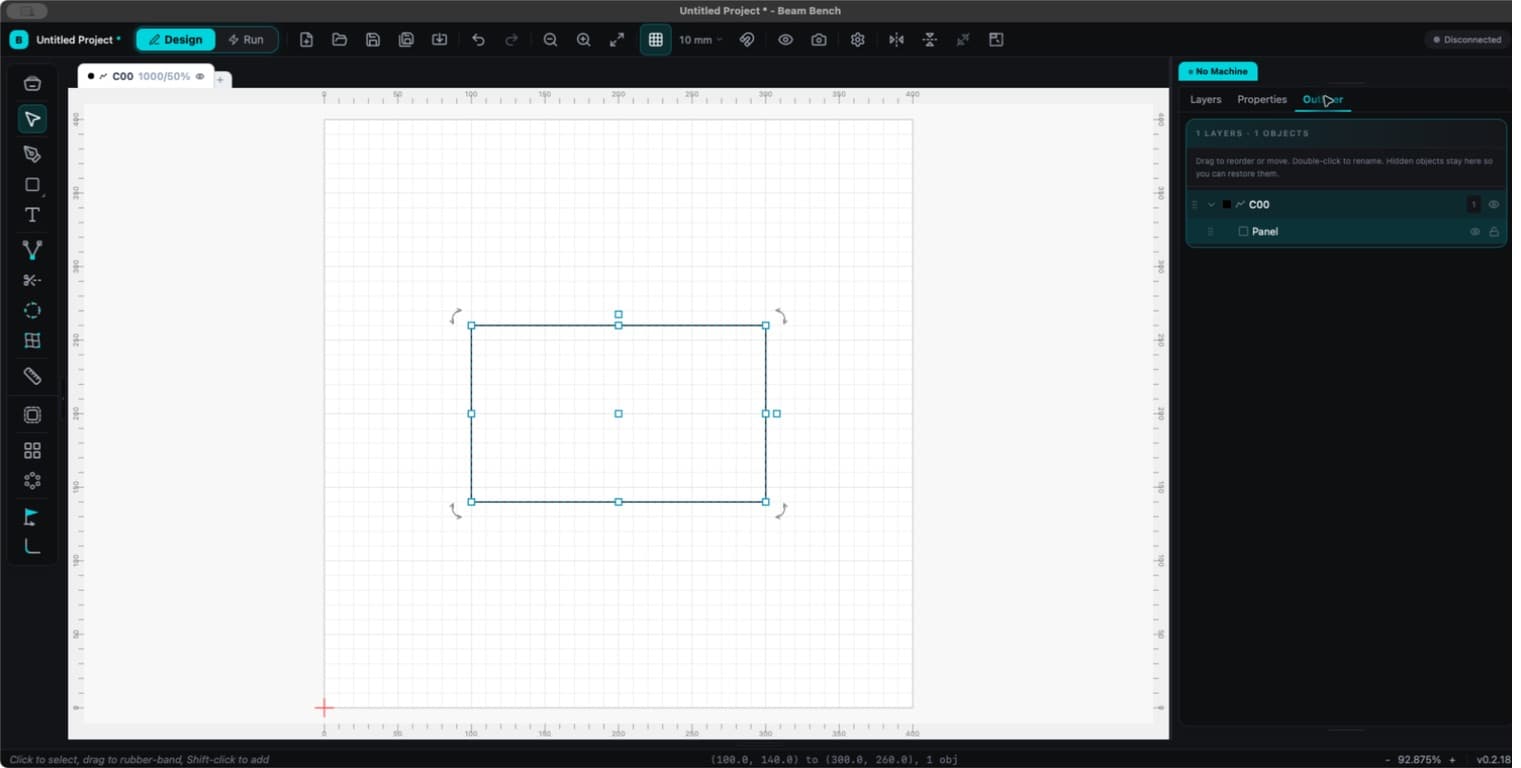
Seçme ve yeniden adlandırma
İçeriğini görmek için bir katmanı veya grubu genişletin. Görünür çizimi seçmek için bir nesne satırına tıklayın. Seçime eklemek için seçim değiştiricilerini kullanın.
Yeniden adlandırmak için bir ada çift tıklayın. Ayrıca bir satıra odaklanıp F2 tuşuna basabilirsiniz. Adı uygulamak için Enter, iptal etmek için Escape tuşuna basın.
Yeniden sıralama ve taşıma
Katman işleme sırasını değiştirmek için bir katman satırını sürükleyin. Üst düzey bir nesneyi veya grubu yeniden sıralamak ya da farklı bir katmana taşımak için sürükleyin. Bırakmadan önce ekleme göstergesini izleyin.
Çizimi bir katmana taşımak, o katmanın ortak işleme ayarlarını uygular. Taşıdıktan sonra gücü, hızı, modu ve Çıktıyı denetleyin.
Görünürlük ve kilitleme
- Bir nesnenin göz düğmesi nesneyi gizler veya geri getirir. Gizli nesneler işten hariç tutulur ancak burada listelenmeye devam eder.
- Bir katmanın göz düğmesi yalnızca tuval görüntüsünü değiştirir. Katmanın tamamını işten hariç tutmak için katmanın Çıktı denetimini kullanın.
- Kilit düğmesi nesneleri düzenlemeye karşı korur. Kilitli çizim, başka açıdan çıktı için uygunsa yine de çalıştırılır.
Bir grup çıktı için seçildiğinde görünür alt öğeleri dahil edilir. Özellikle seçim gruplar, klonlar veya maskelenmiş görüntüler içerdiğinde çalıştırmadan önce Önizlemeyi denetleyin.