Beam Bench course
Learn Beam Bench
Short video lessons, each with a written guide and practice files you can open in Beam Bench. Follow them in order, or jump straight to the task in front of you.
46 lessons readyFree, no account needed
Lessons
Getting started
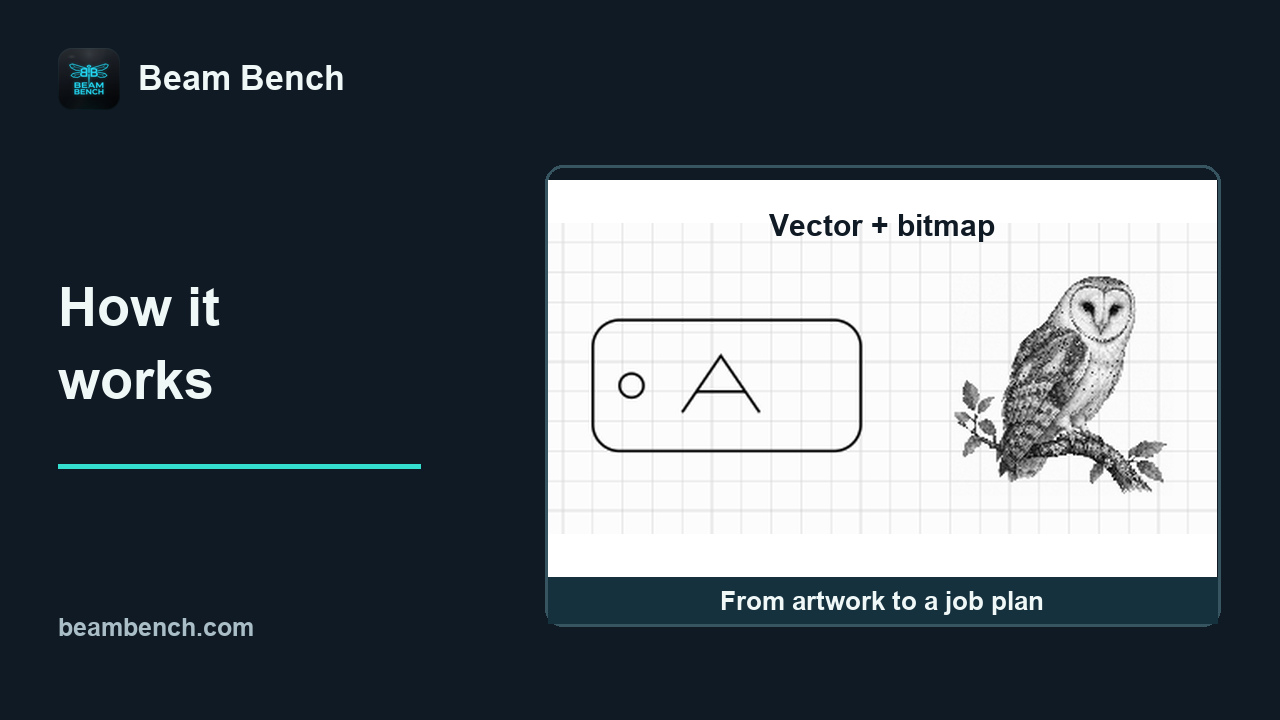 6:38How your laser and Beam Bench workConnect artwork, processing modes and controller commands before preparing a job.
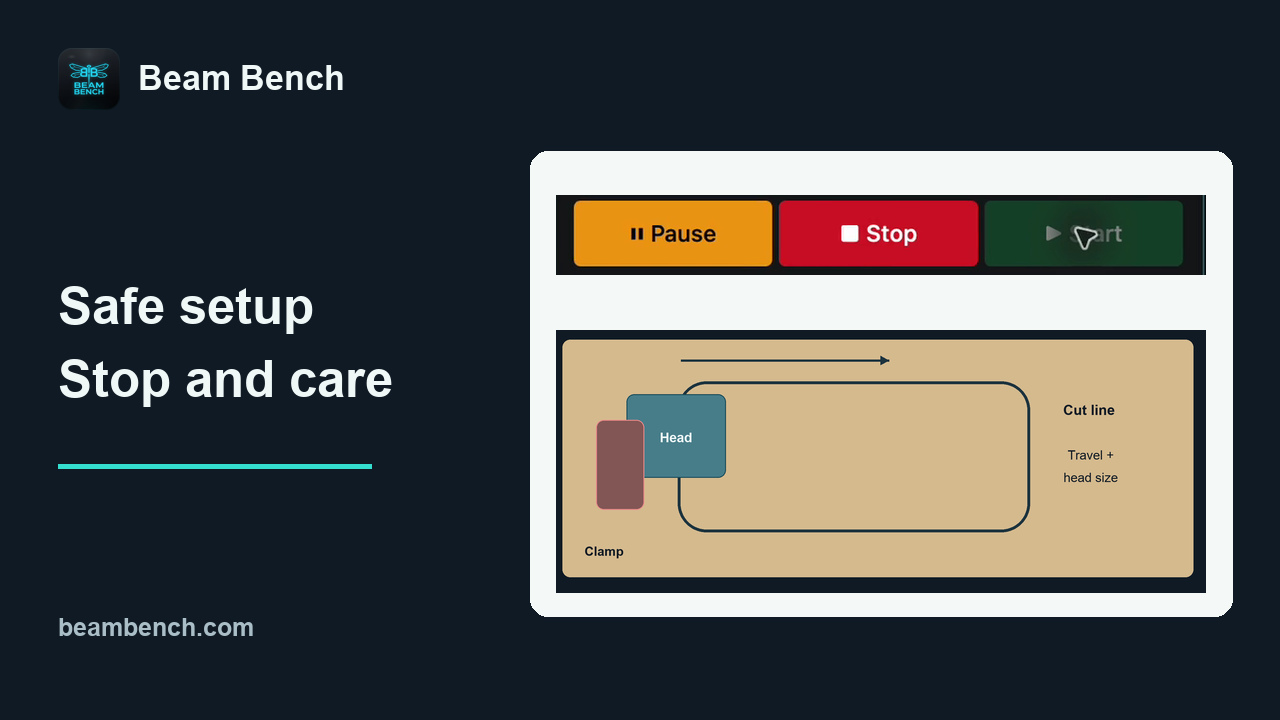 5:44Safe setup, stop controls and machine careKeep a machine-specific before-start reference and reason through three offline setup cases.
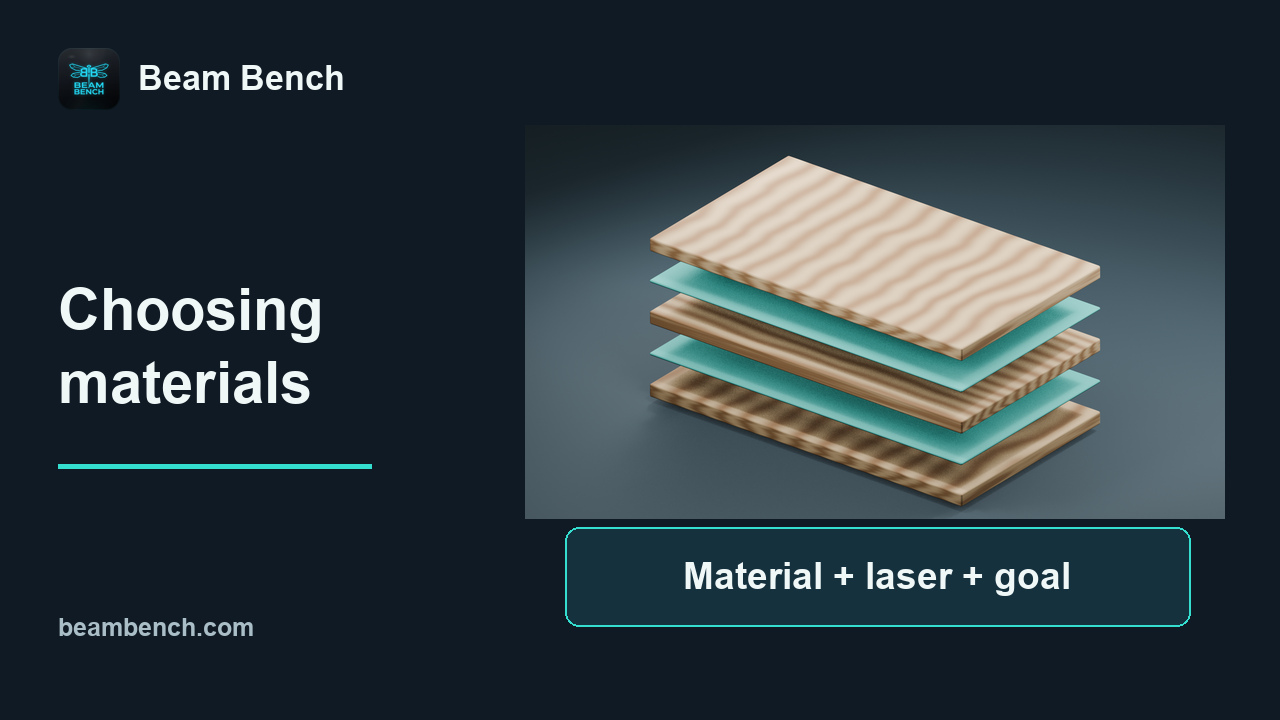 6:50Choosing materials and setting expectationsIdentify the full material and laser combination, then distinguish compatibility from an untested result.
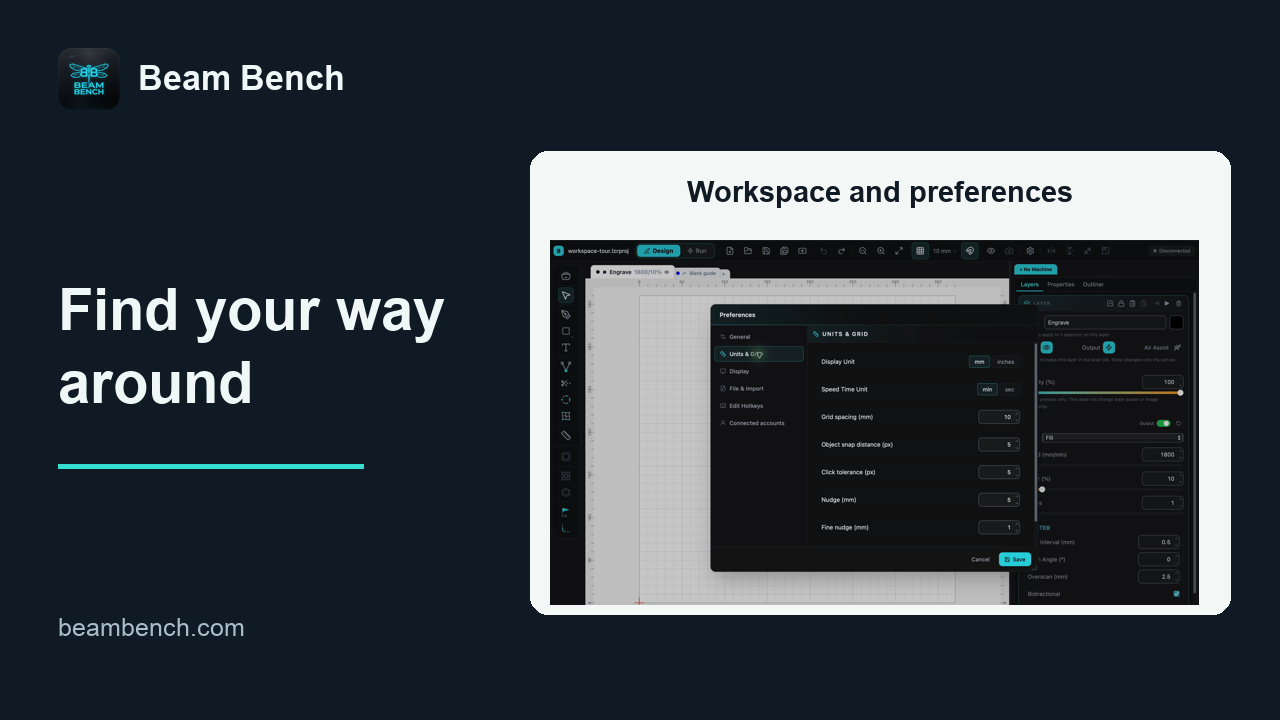 3:15Finding your way around Beam BenchFind the main workspaces, record the version and make reversible layout and preference changes.
Setting up your laser
Drawing and arranging artwork
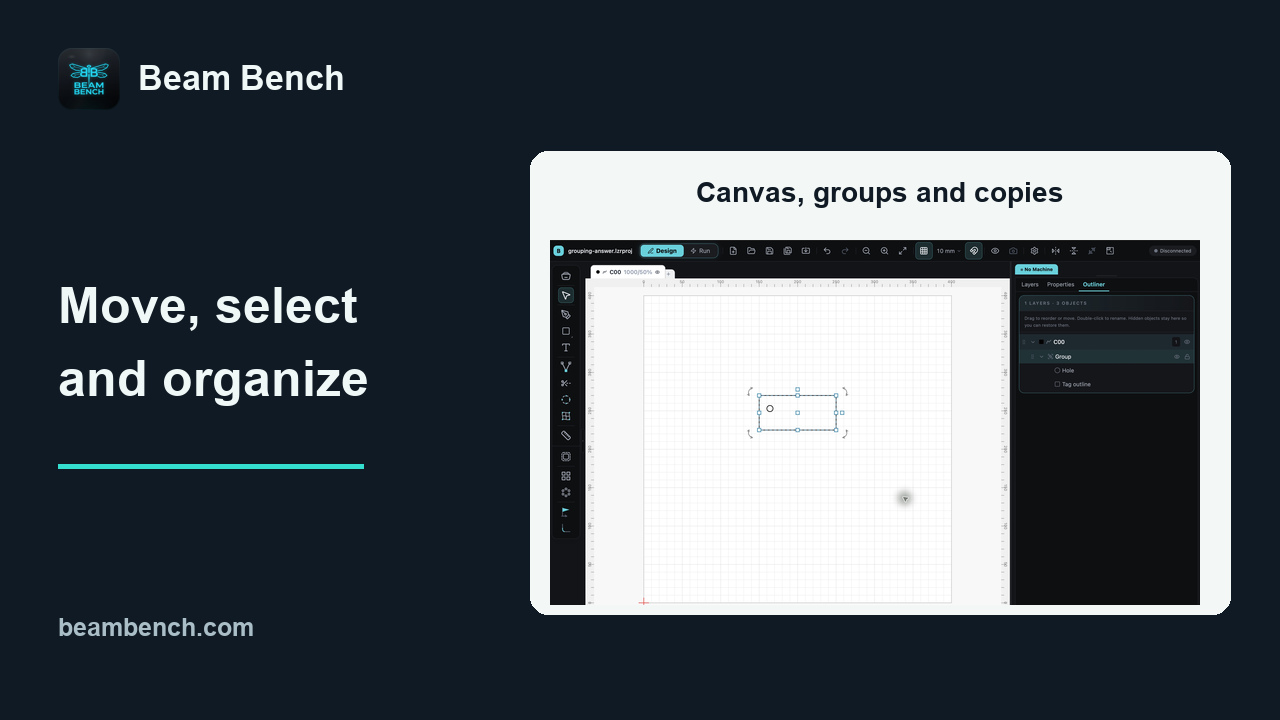 4:45Moving around, selecting and organizing artworkNavigate, select overlapping objects and keep a multi-part design together while making copies.
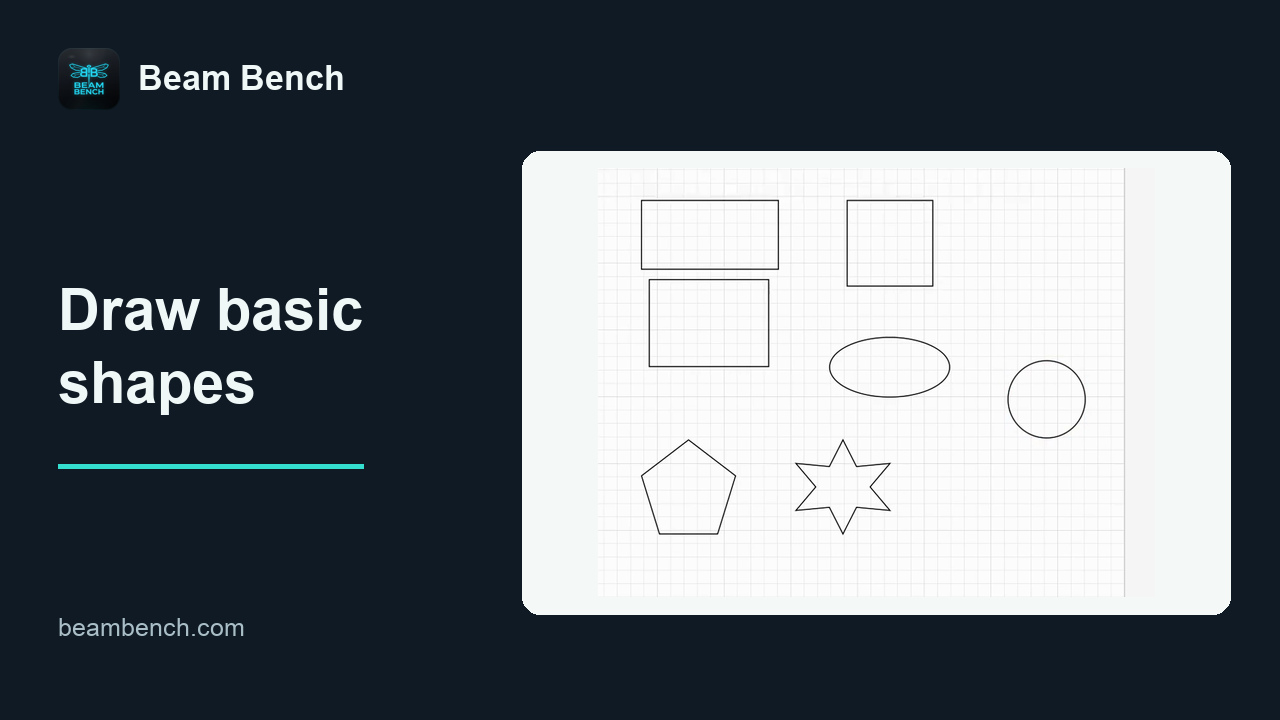 1:50Drawing basic shapesUse the shape tools and a few keyboard modifiers to create your own editable tag.
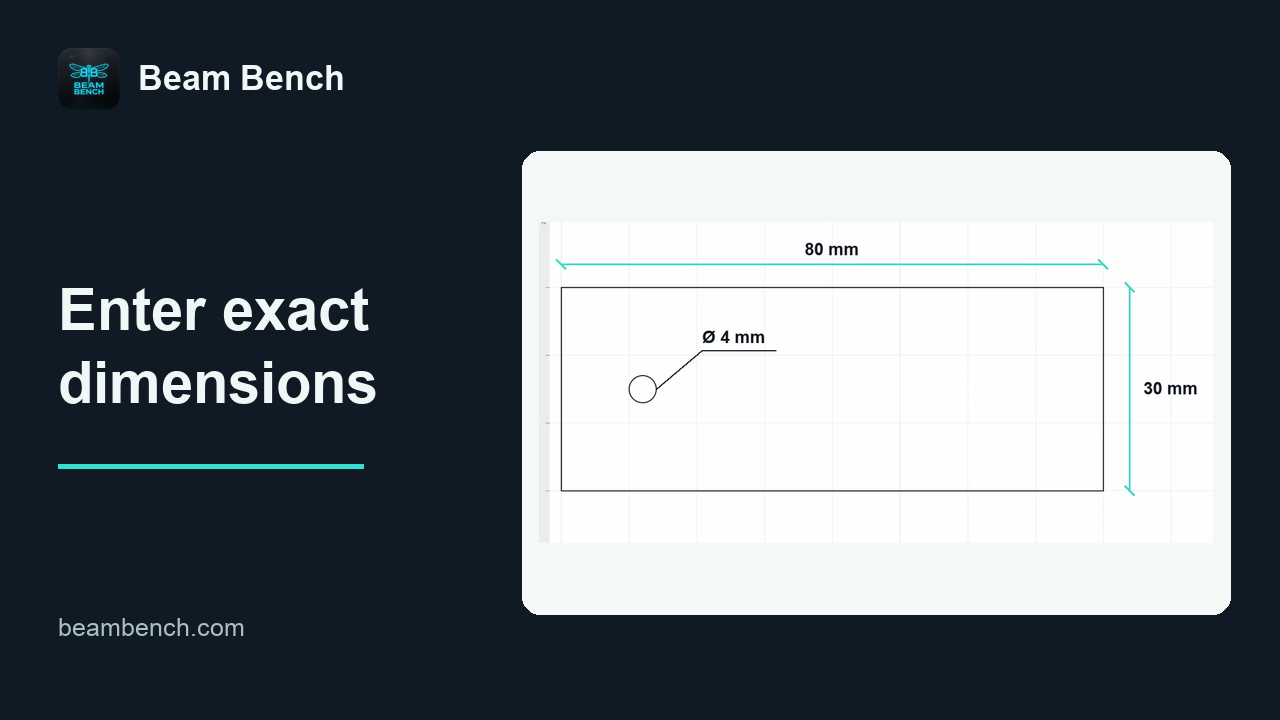 2:00Entering exact dimensionsGive each shape a precise size in Properties, then check the rectangle and hole separately.
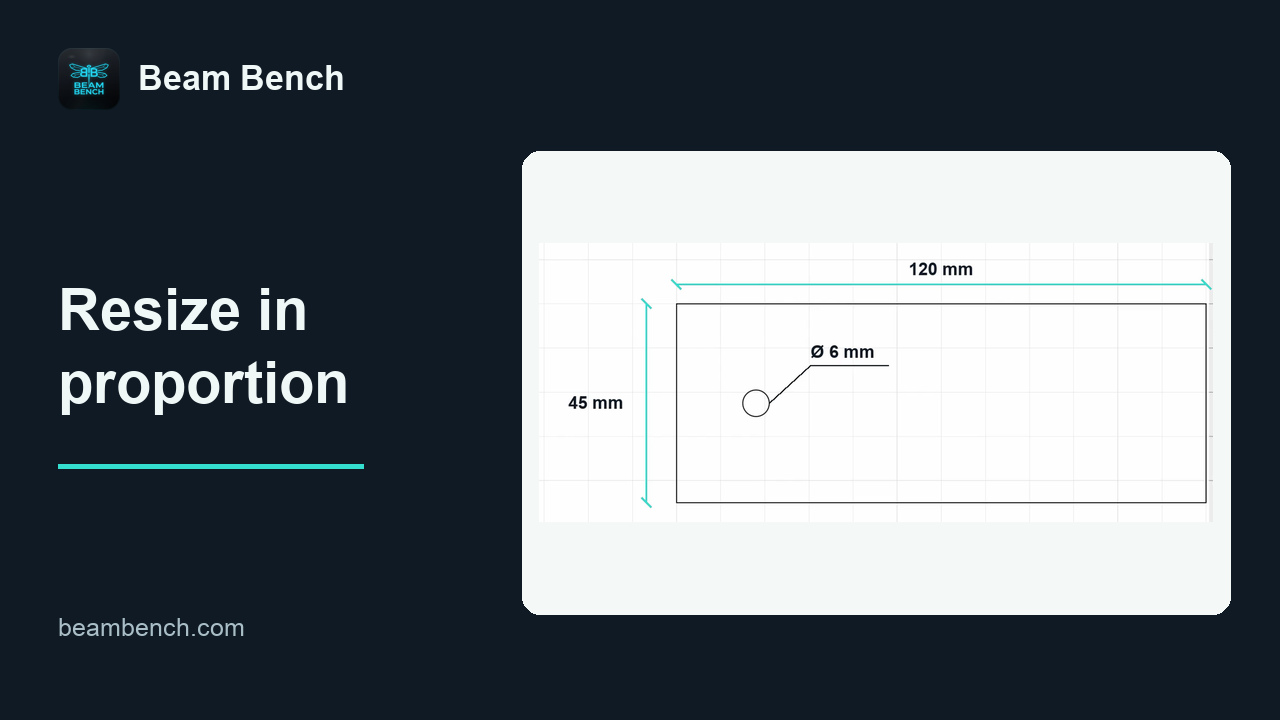 1:47Resizing while preserving proportionsResize the complete design without stretching it, and account for the way scaling changes holes and spacing.
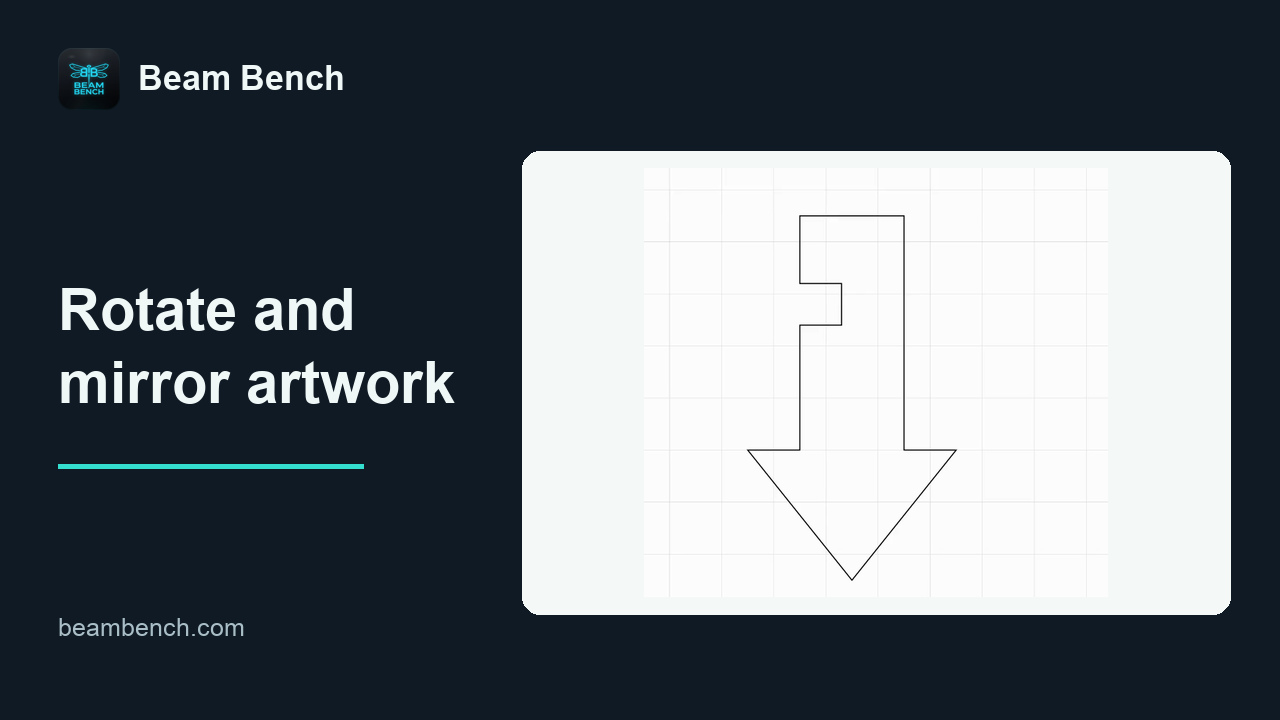 1:34Rotating and mirroring artworkUse an asymmetric arrow to see the difference between turning artwork and flipping it.
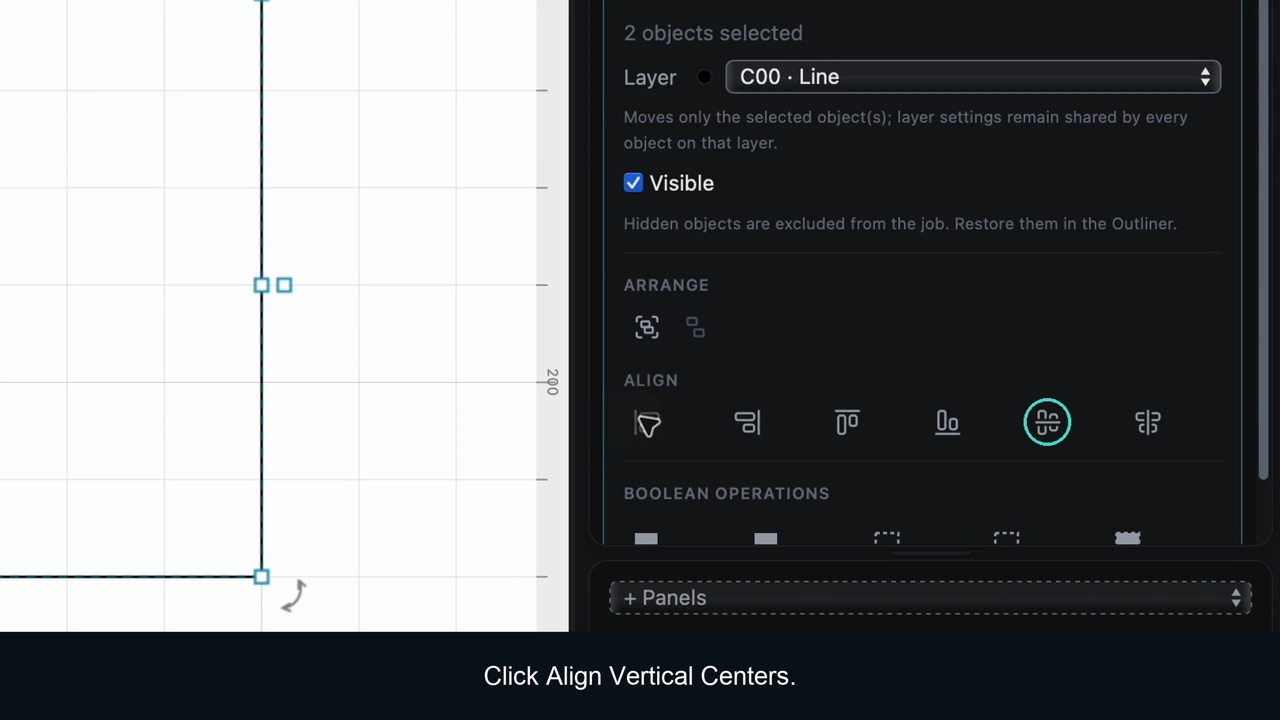 2:08Aligning and centering objectsCenter one shape inside another, then place the complete layout at the page center.
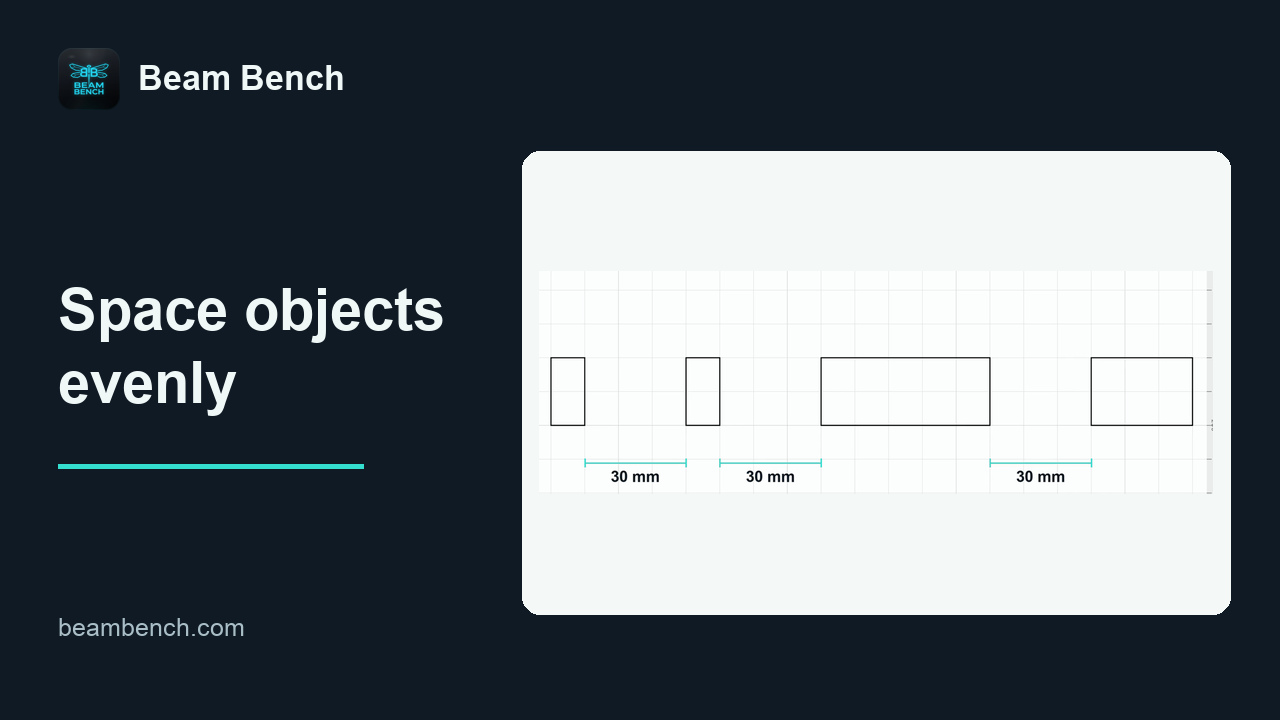 1:55Distributing objects evenlyChoose equal edge gaps or equal center spacing, and understand why they can give different results.
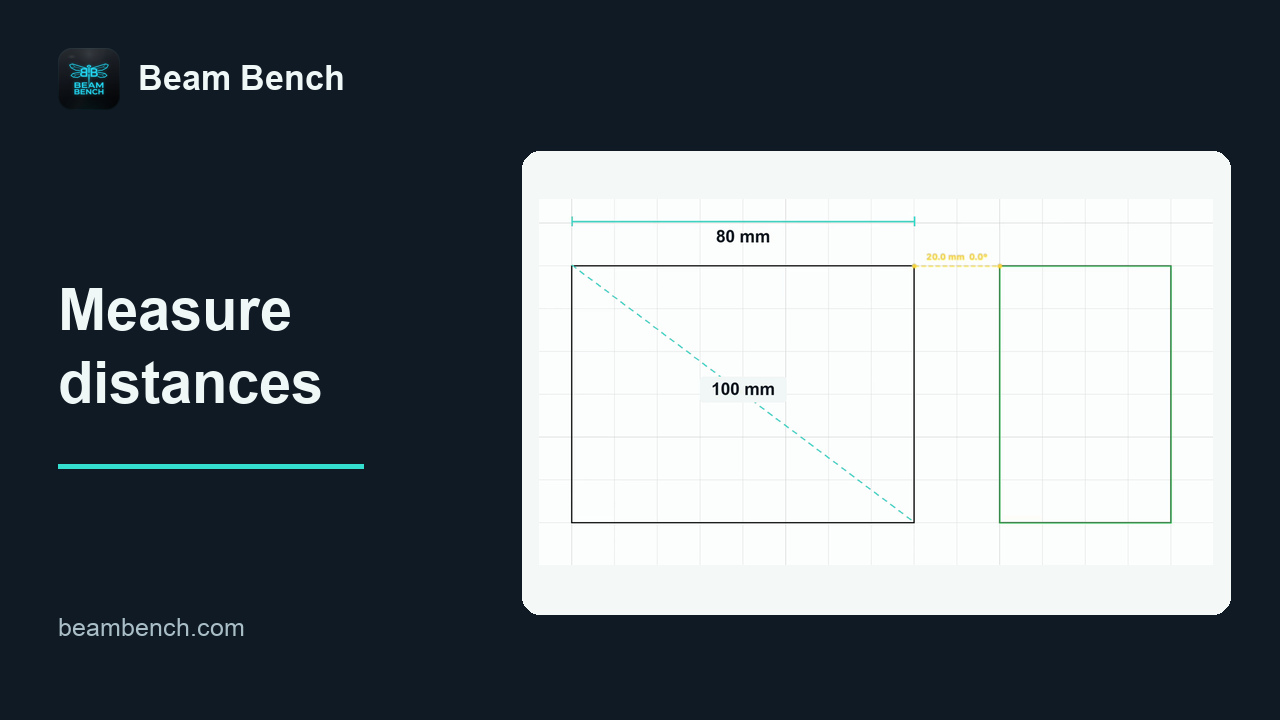 1:55Measuring distancesInspect widths, diagonals and clearances with temporary measurement overlays.
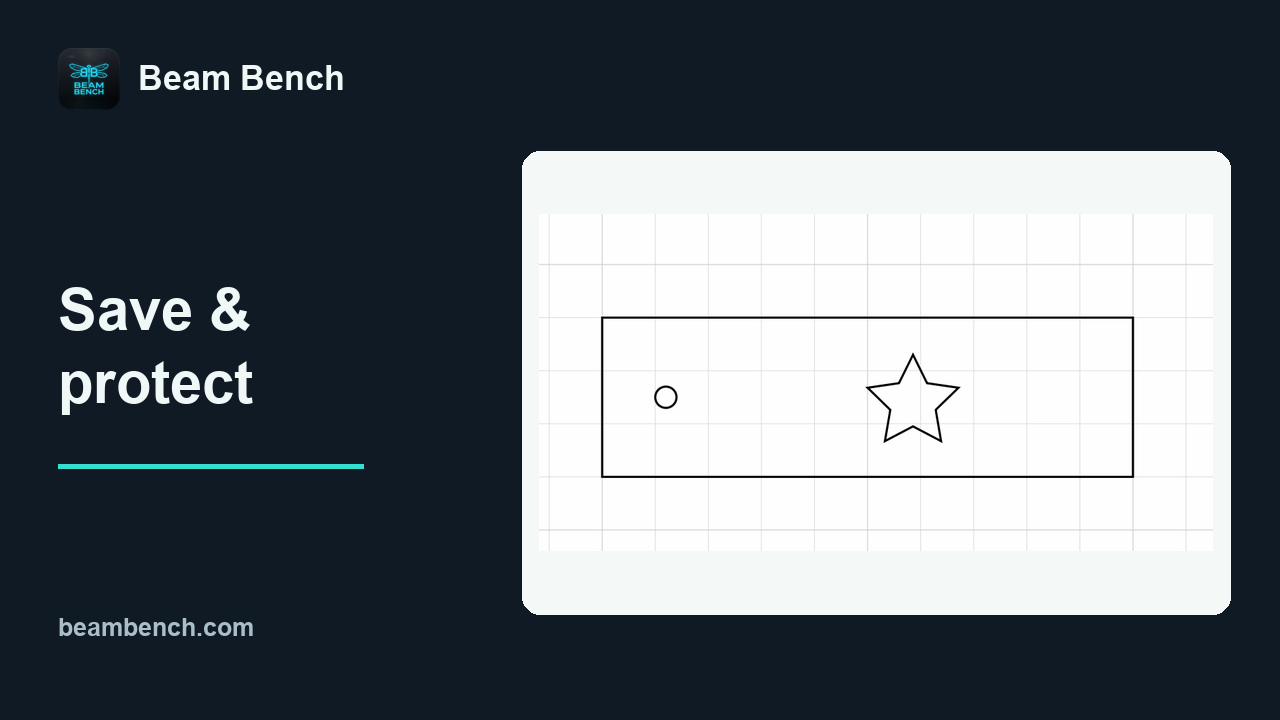 4:42Saving and protecting your workKeep versions, verify a backup, and understand how Autosave differs from Save.
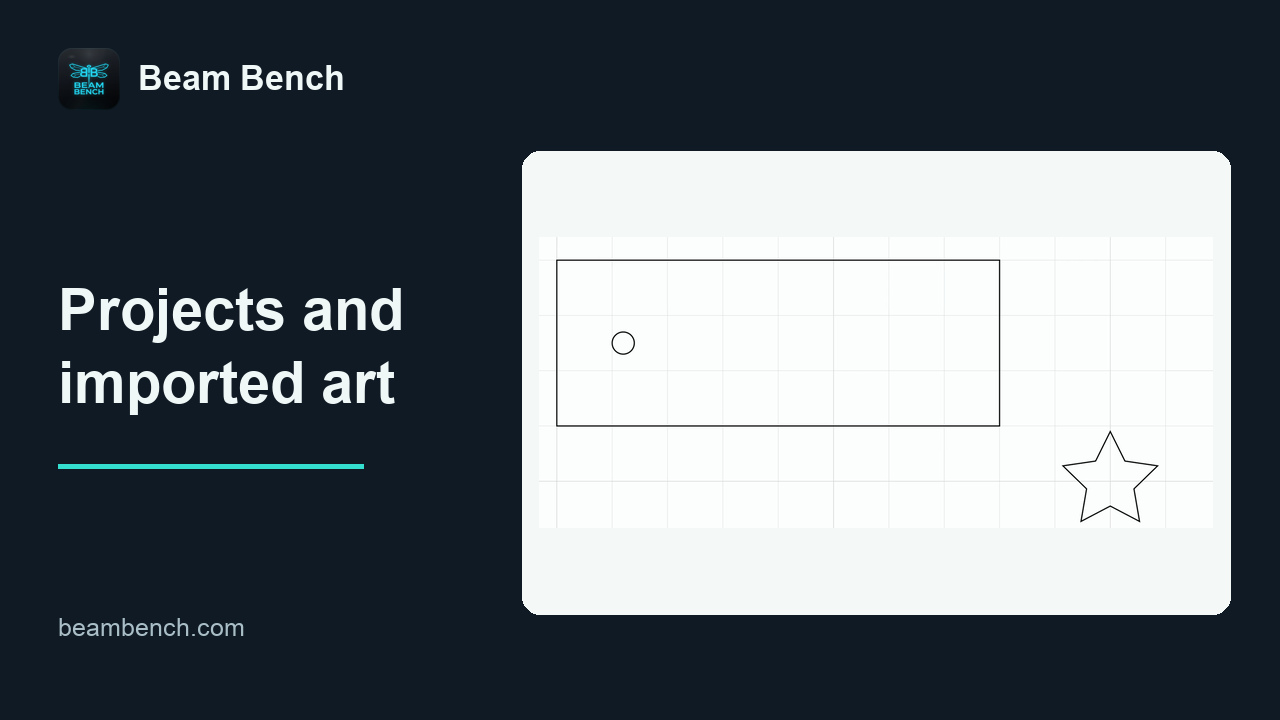 1:58Projects and imported artworkKeep a Beam Bench master project and use SVG when you want to share vector artwork.
Layers and laser settings
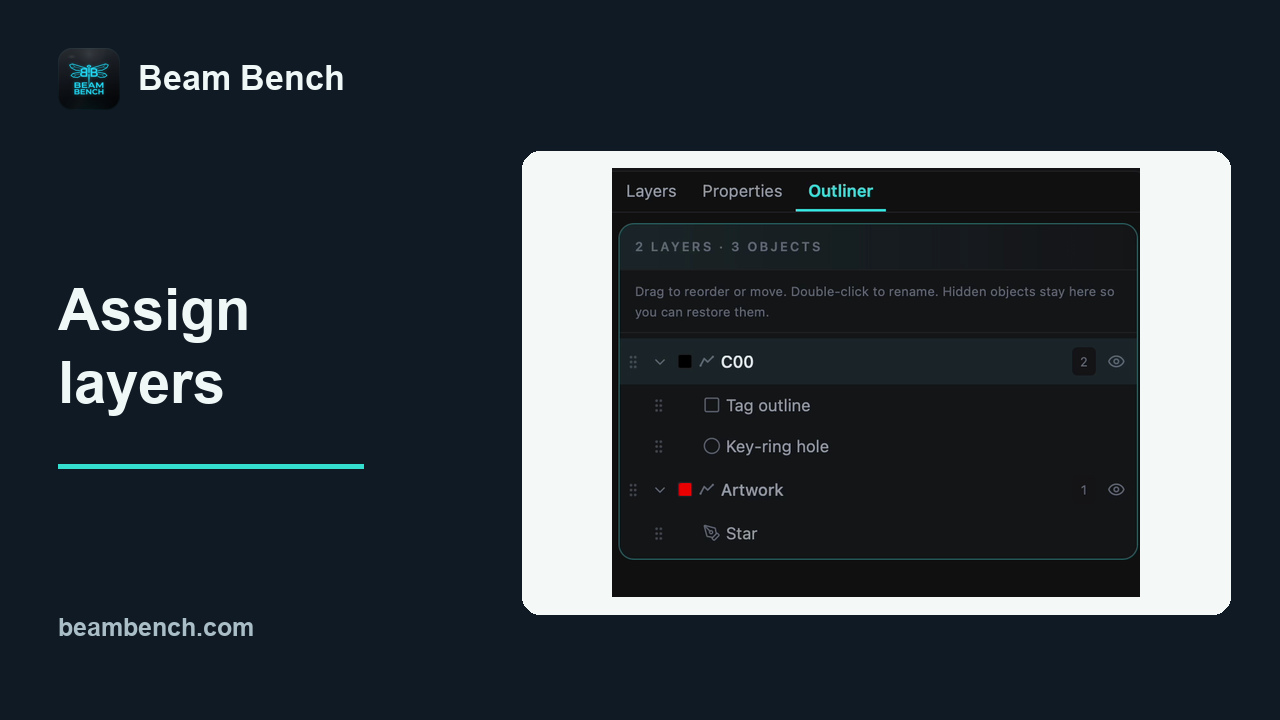 2:07Assigning objects to layersMove one selected object to a new layer while preserving the rest of the design.
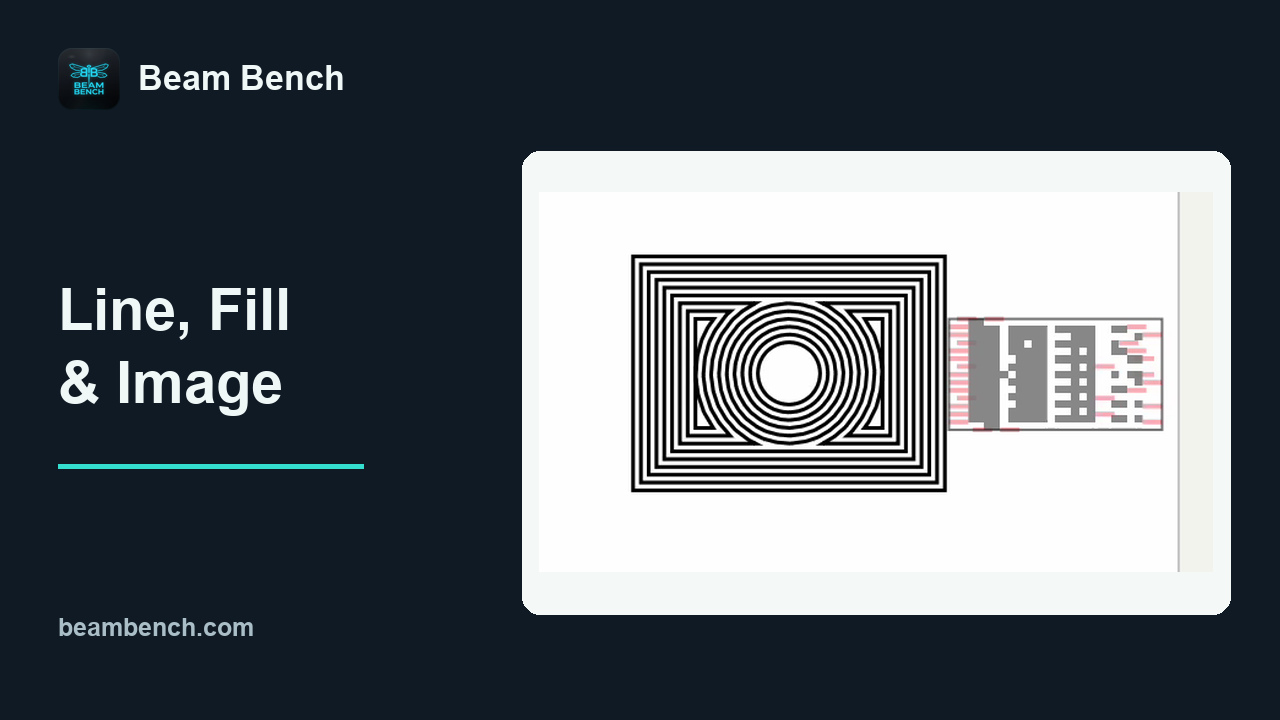 3:39Line, Fill, Image and Offset FillCompare vector and bitmap operation modes by inspecting the actual software plan.
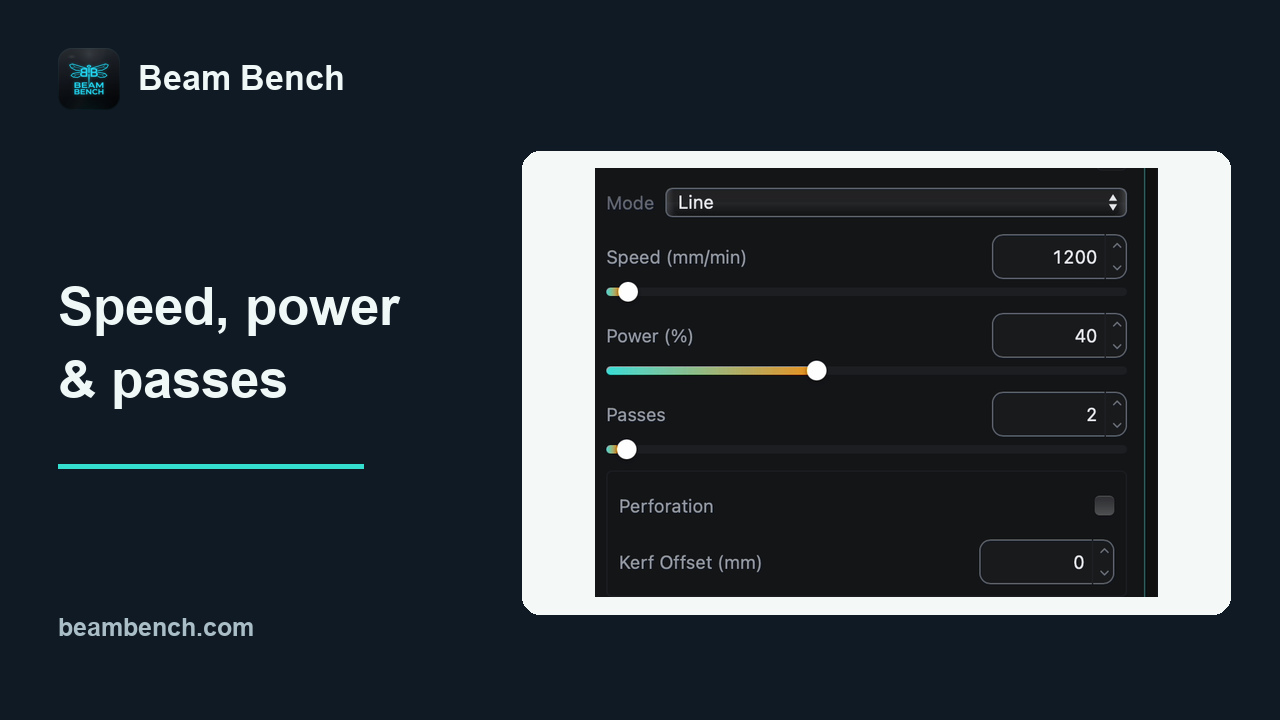 2:53Speed, power and passesRead speed units correctly, set commanded power and inspect repeated passes.
 2:50Adjusting object Power ScaleUse an object multiplier to vary commanded power without creating extra layers.
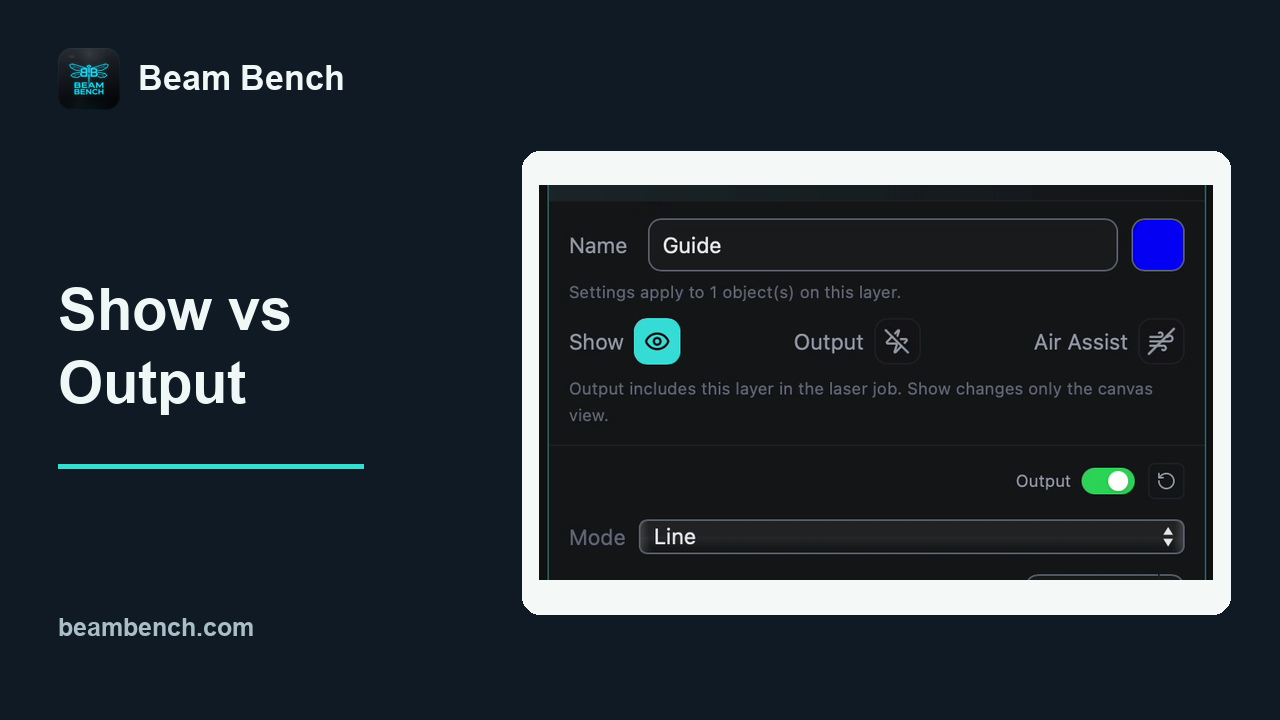 3:16Show, Output, visibility and lockingSeparate canvas display, job inclusion and protection against accidental editing.
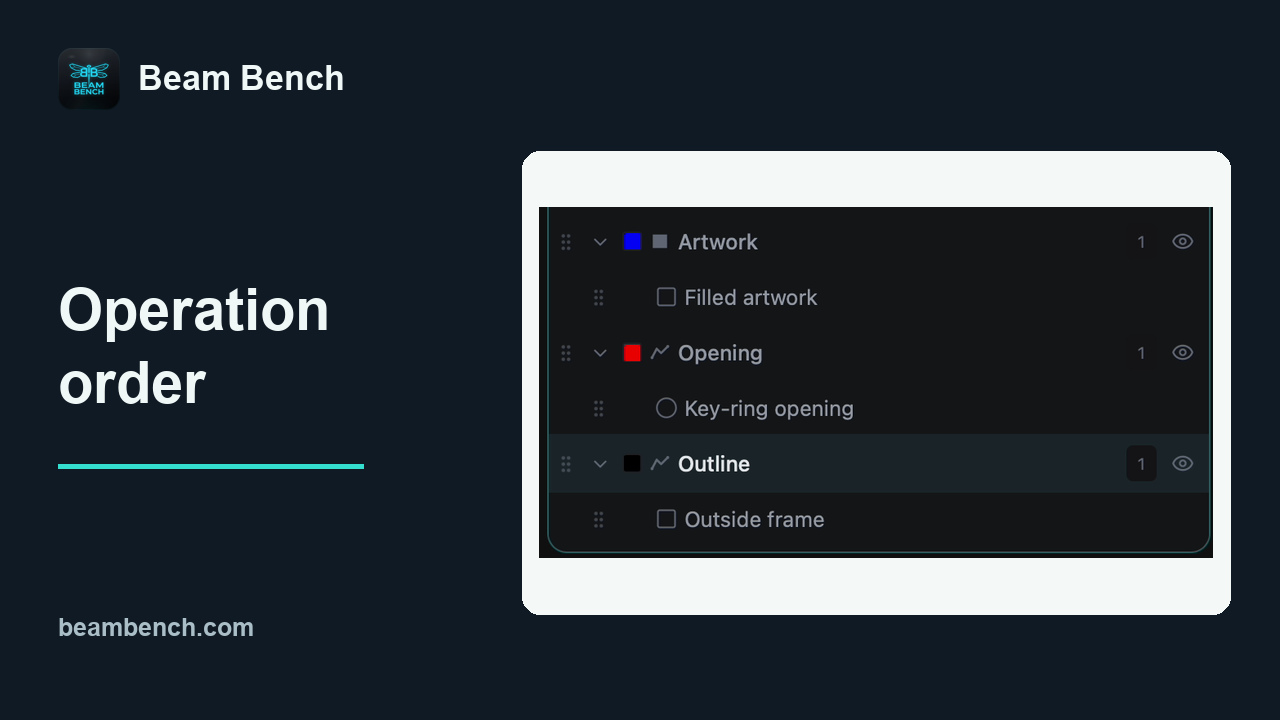 3:06Changing the order of operationsSet an explicit layer order and check the real sequence in Preview.
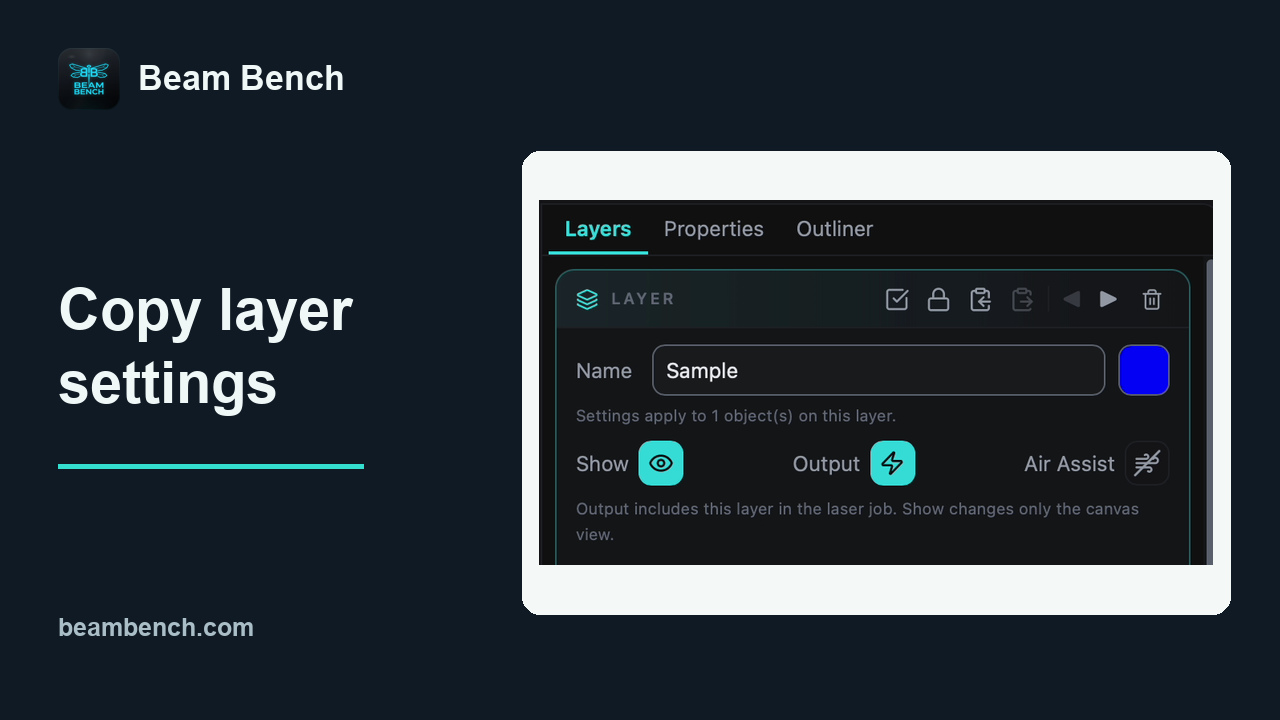 2:41Copying settings between layersCopy operation settings to another layer, then make one independent adjustment.
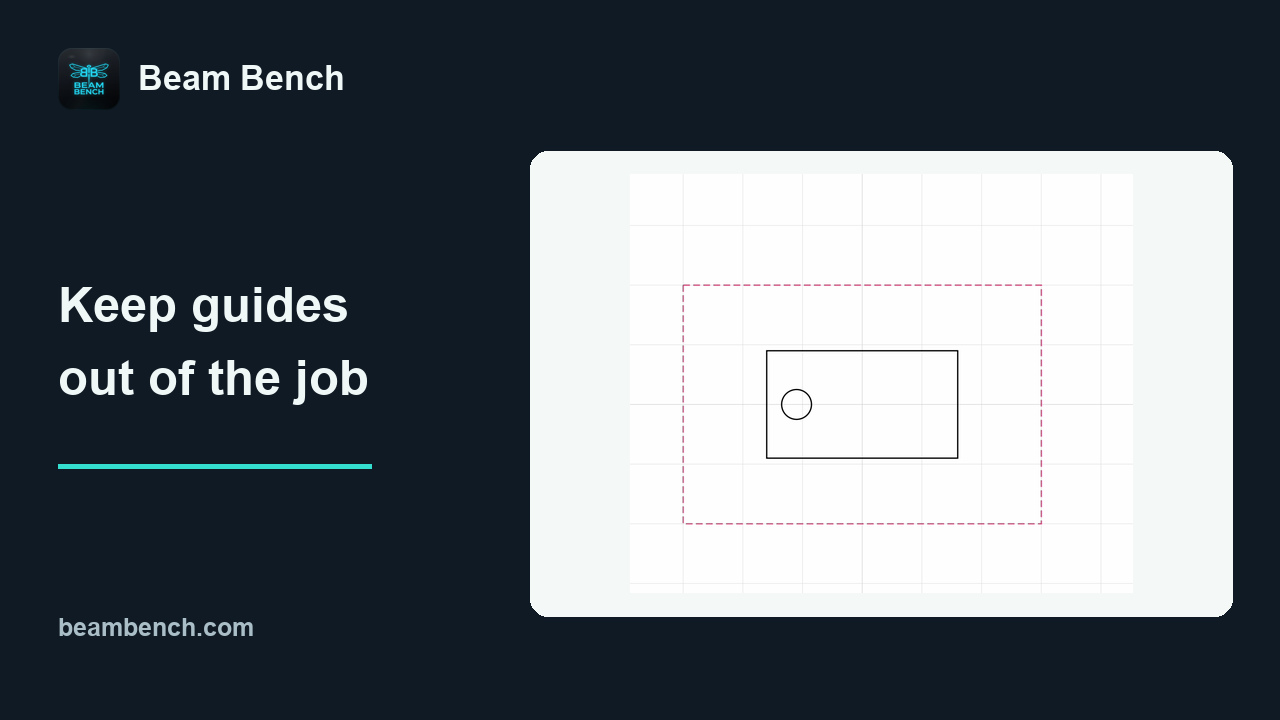 2:38Using tool layers for reference artworkKeep a reference guide visible and protected while excluding it from the laser plan.
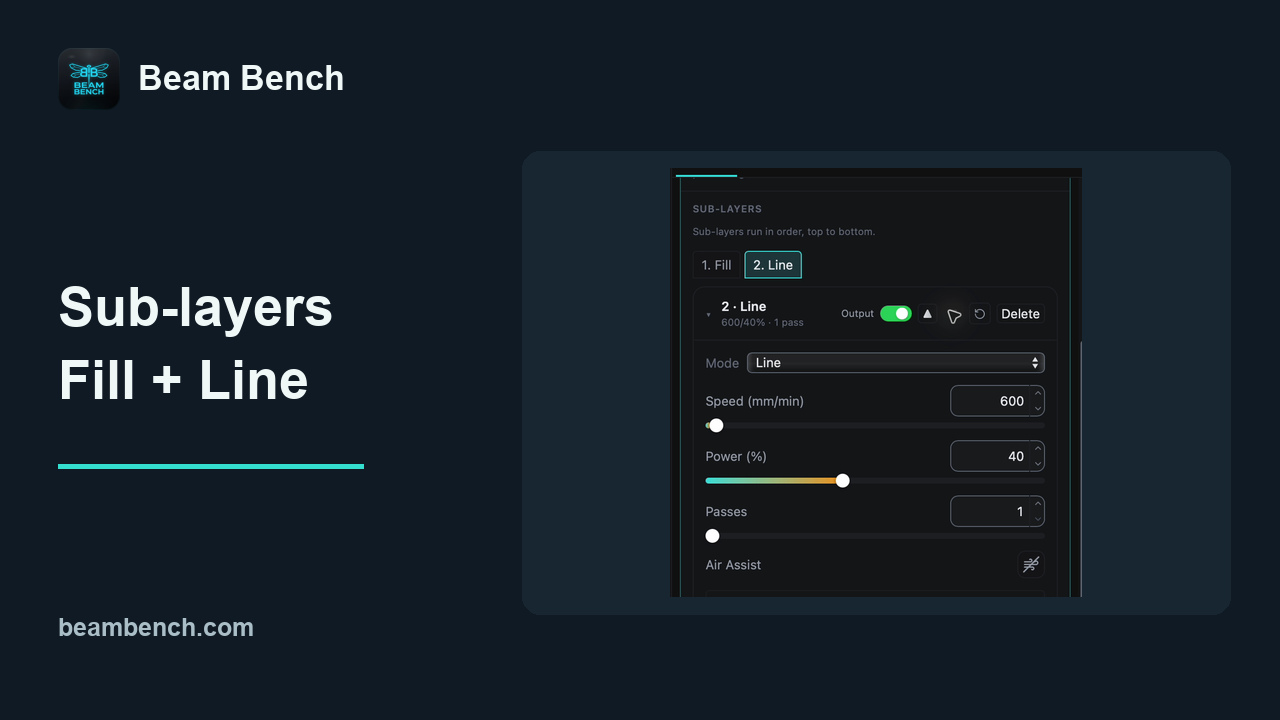 2:49Adding sub-layers for multiple operationsApply Fill and then Line to one object, with separate settings for each operation.
Placing and running jobs
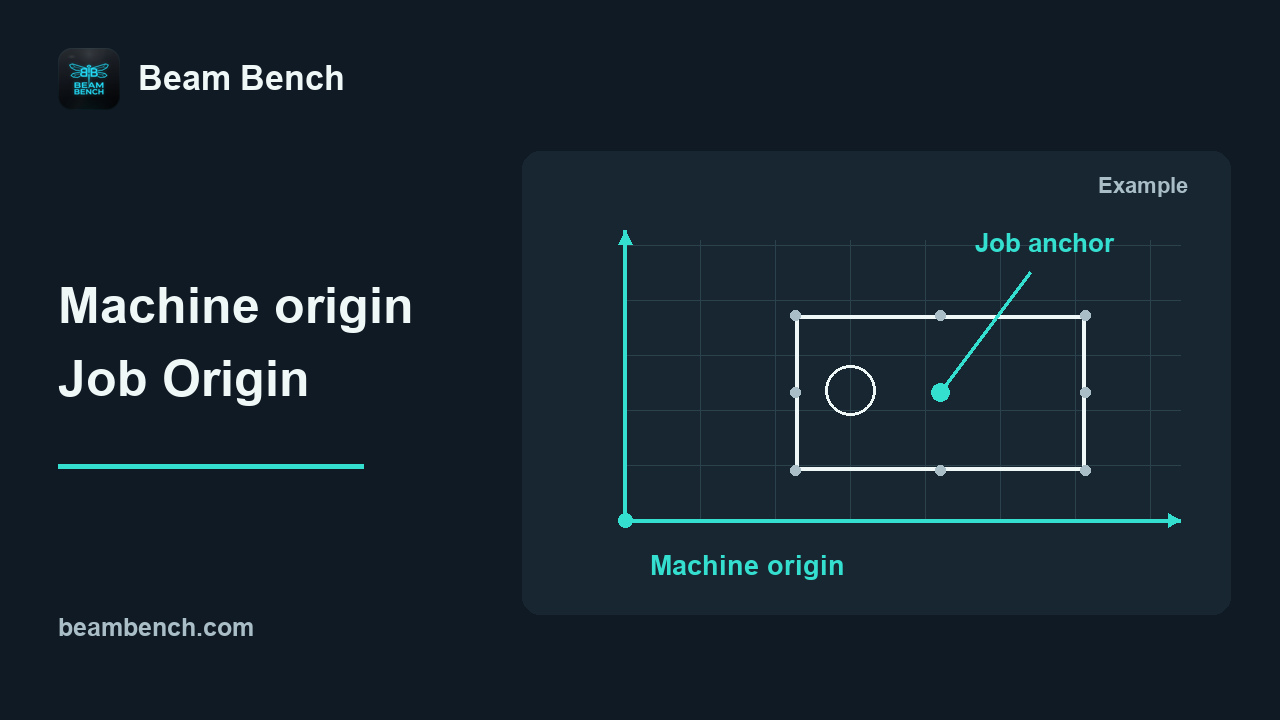 2:30Machine origin and job originDistinguish the machine reference from the anchor chosen on the artwork.
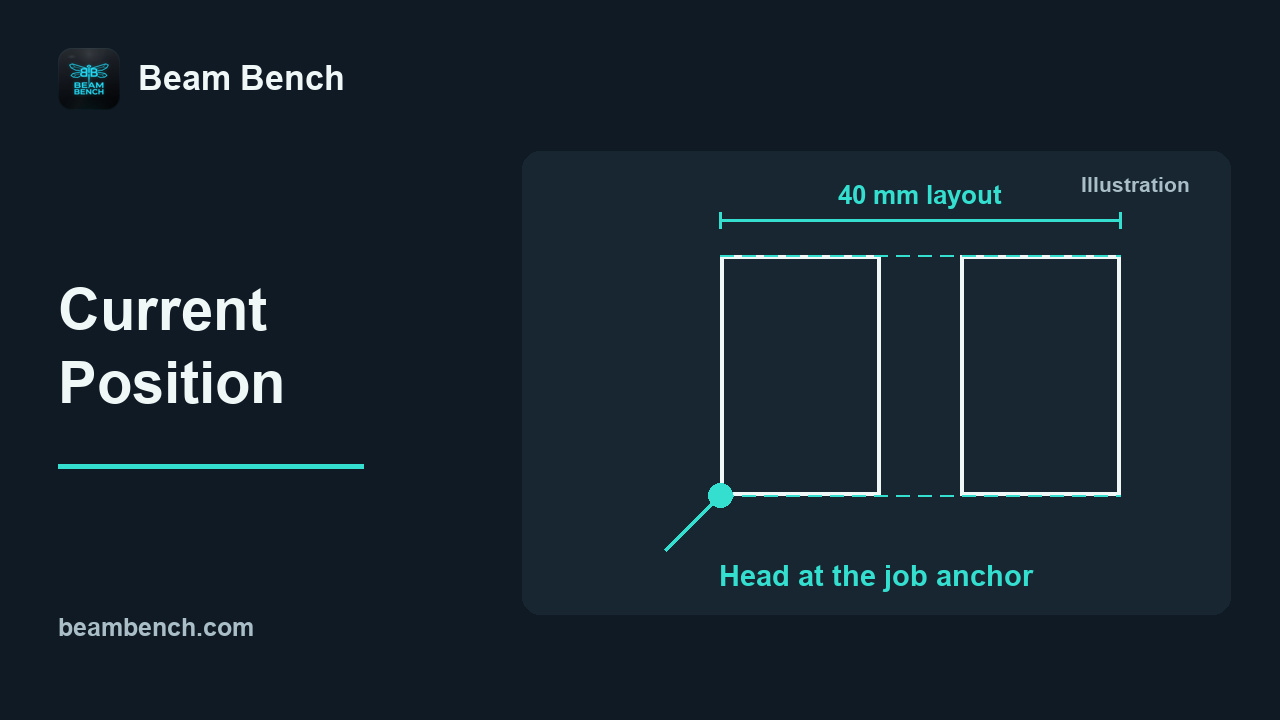 2:16Using Current PositionChoose one anchor for a complete layout and understand why live position matters.
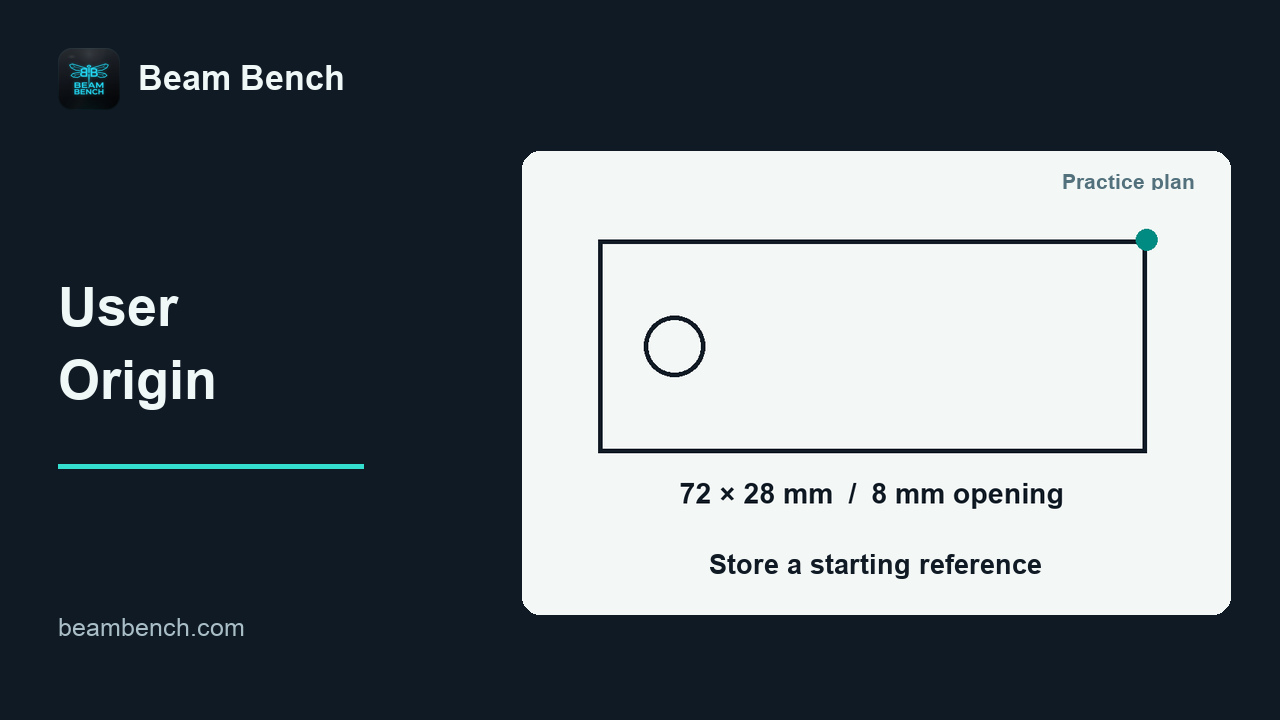 2:17Using User OriginCompare a stored User Origin with the head's current position.
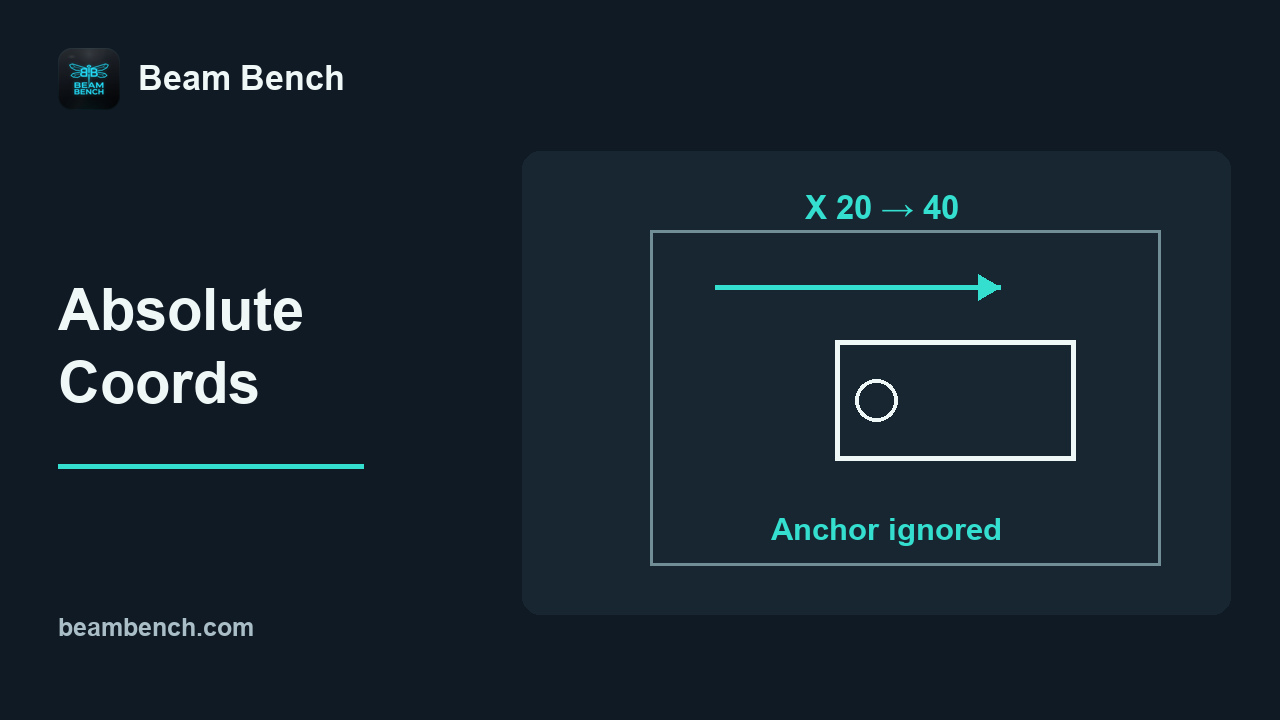 2:26Using Absolute CoordsPlace artwork by workspace coordinates and verify that Job Origin is ignored.
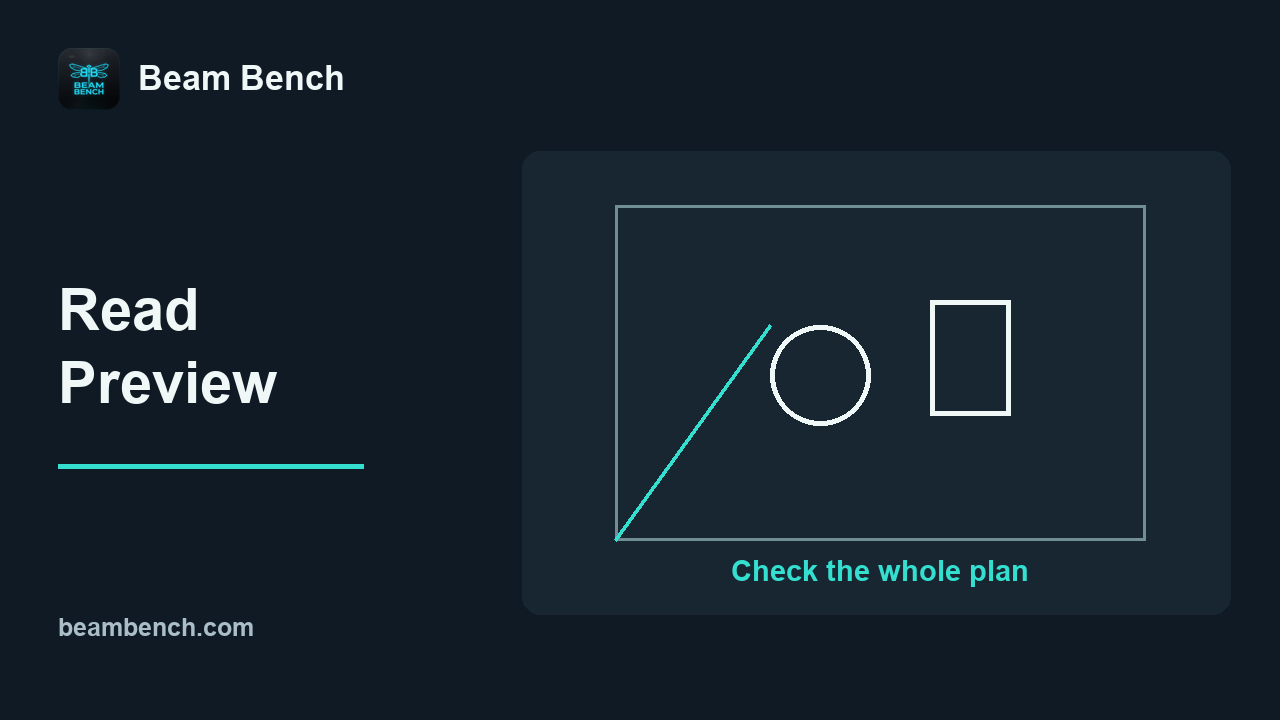 2:11Reading Preview and resolving placement problemsResolve an out-of-bounds object and remove a visible guide from the planned output.
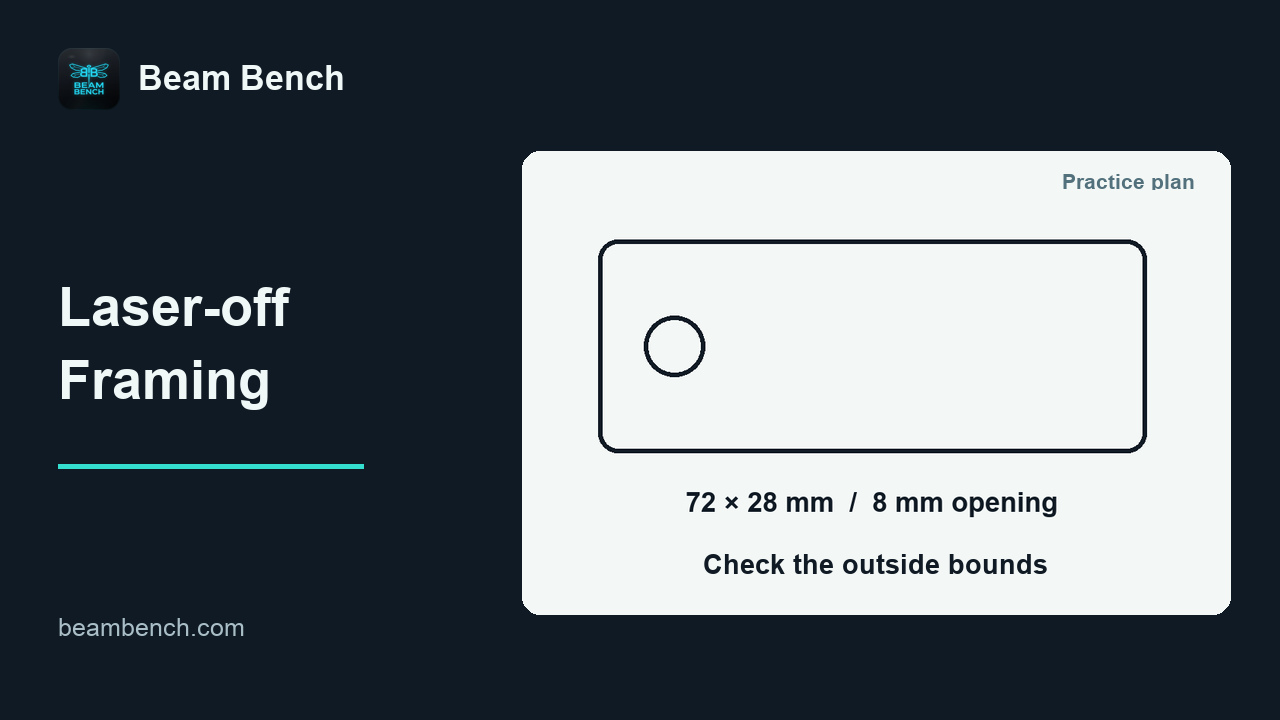 2:04Checking placement with laser-off framingReview saved placement and understand a laser-off Box frame.
 2:07Preparing a job from chosen artworkChoose what runs through layer membership and Output while retaining the full design.
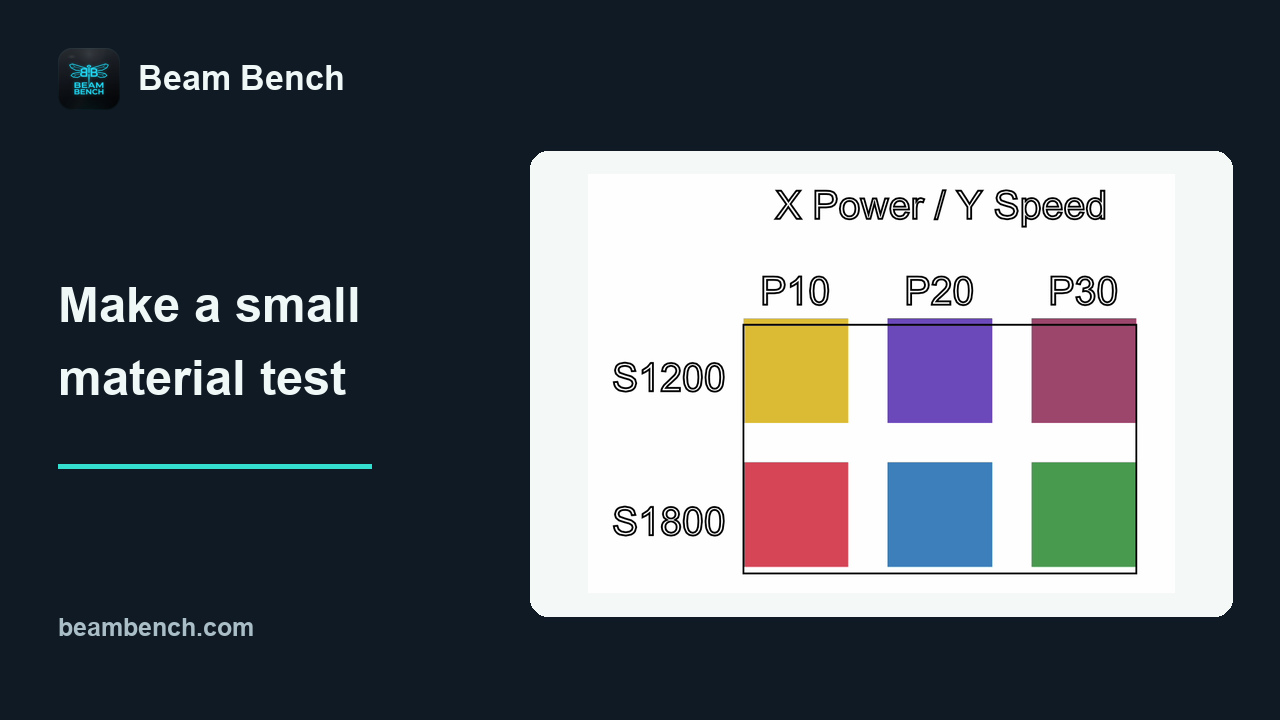 2:21Starting and monitoring a material testPrepare, preview and export a compact material-test recipe without running a machine.
 2:08Pausing, resuming and stopping a jobRead the demonstrated GRBL job states and distinguish Pause, Resume and Stop.
 2:08Recovering from alarms and connection lossUse the reported state to organize recovery checks after an alarm or lost connection.
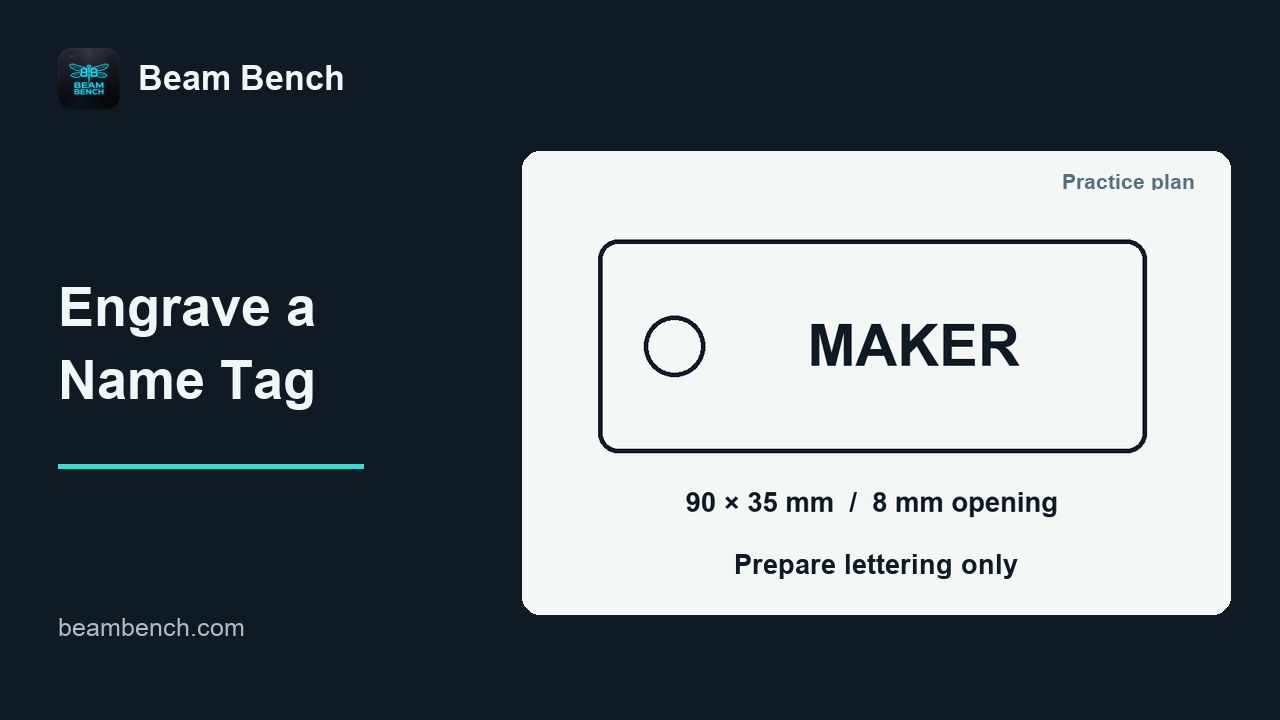 2:24Preparing and running a personalized name-tag engravingCreate editable lettering while keeping the blank guide out of the engraving plan.
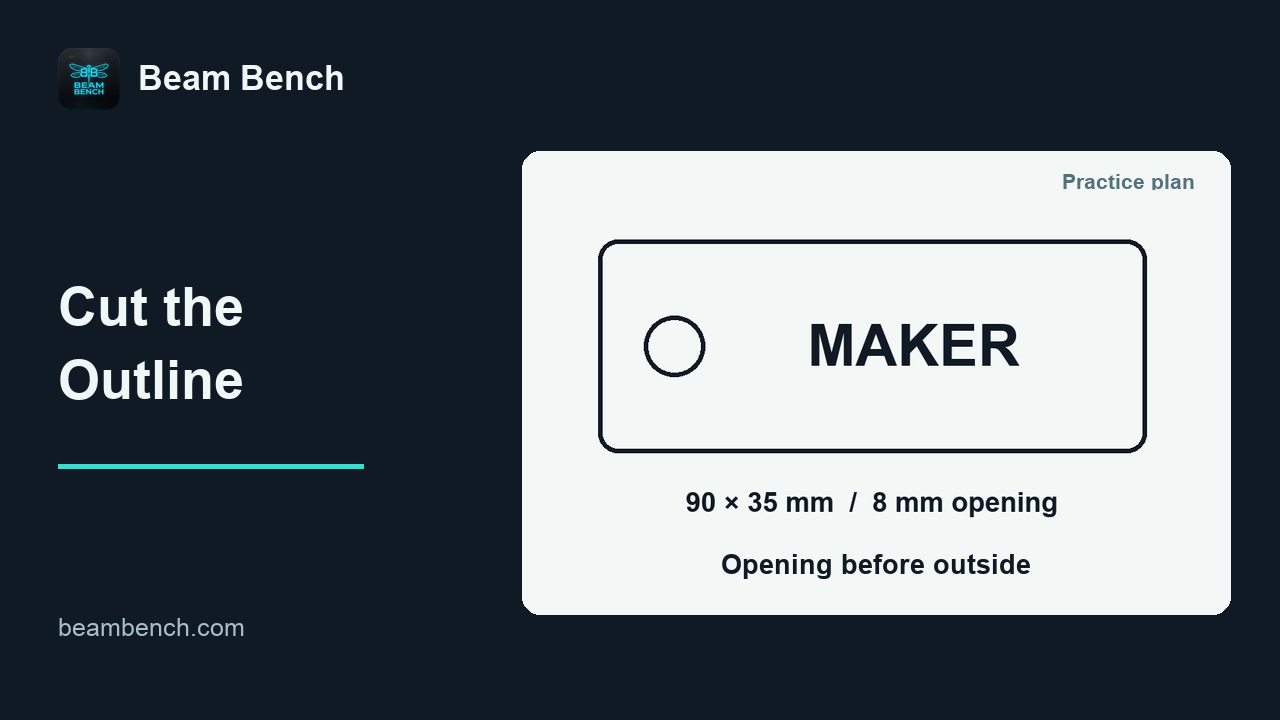 2:02Preparing the name-tag outline for cuttingPrepare a separate outline job with the opening before the outside edge.
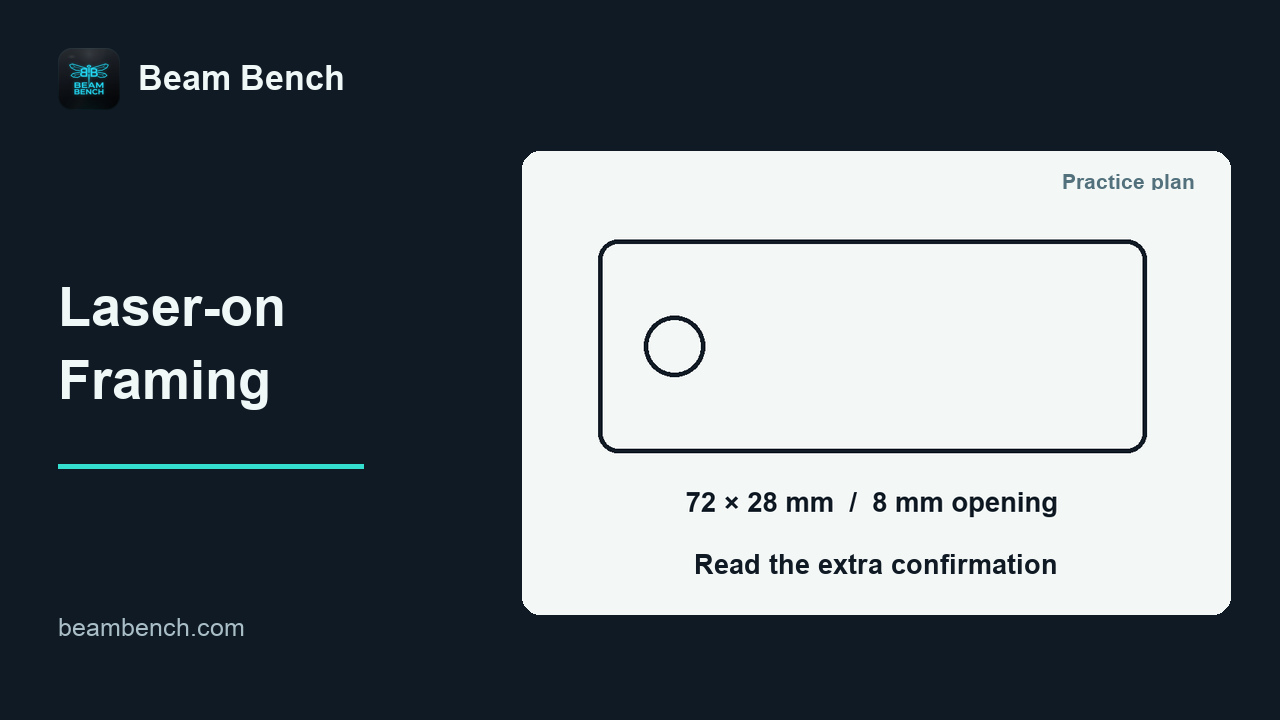 2:09Using low-power laser-on framingRecognize the firing frame, its extra confirmation and the final controls to inspect.
Material tests
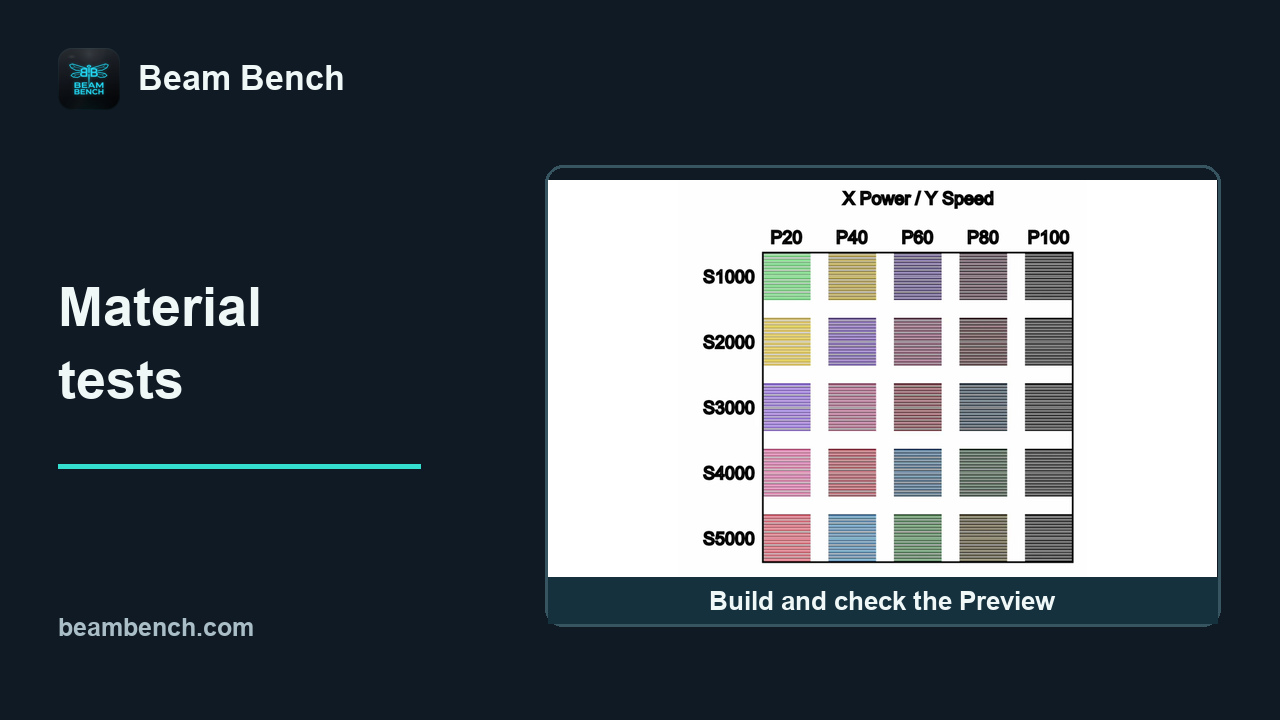 6:14Planning and reading material testsPrepare broad and narrow Material Tests, choose settings from a stated goal, and compare line intervals and Preview estimates.
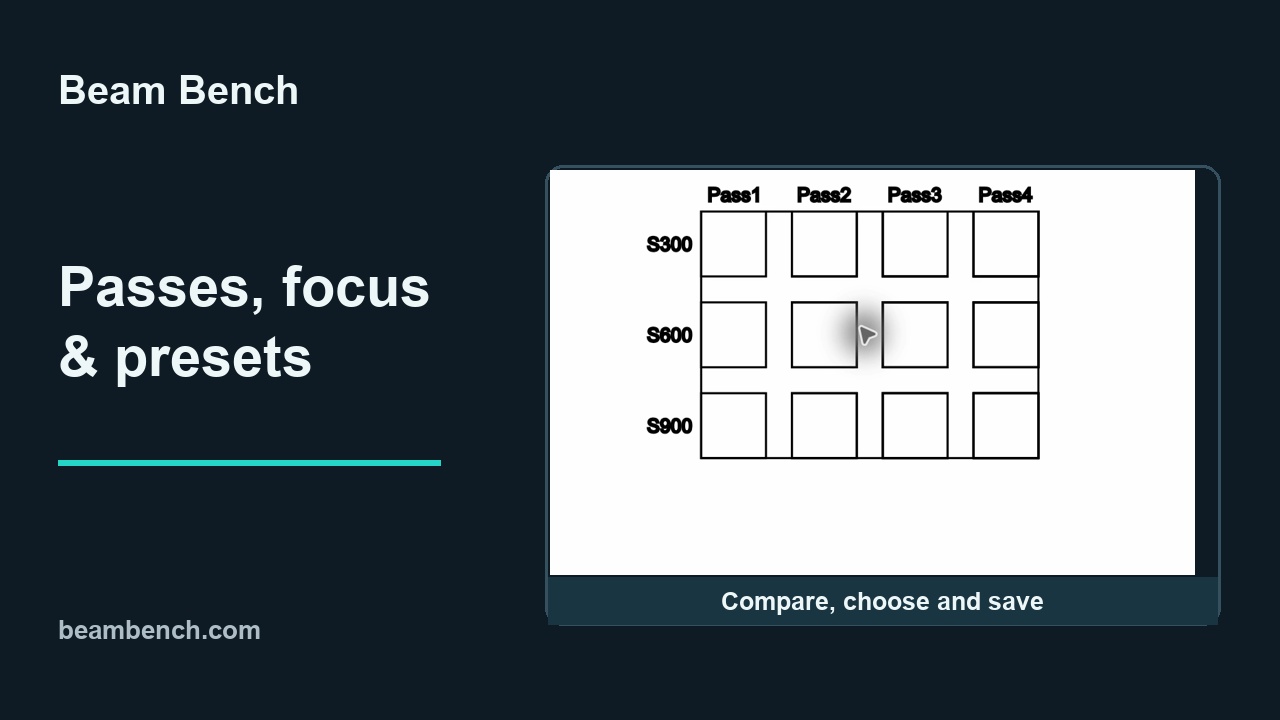 7:29Passes, focus, saving settings and checking resultsChoose passes from supplied observations, inspect Focus Test labels, save an example preset and explain the decision in a log.
Importing and repairing vector artwork
Text and images
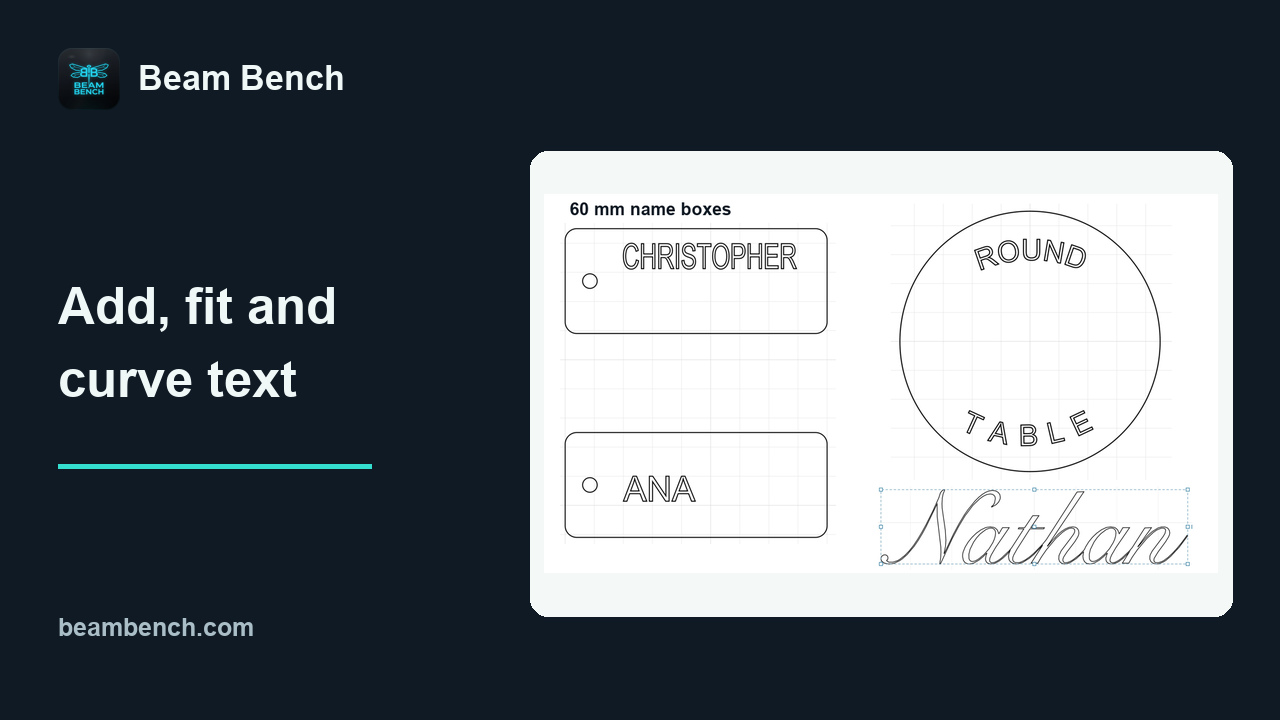 5:35Adding, fitting and curving textFit and shape editable text, then preserve a separate outline copy when needed.
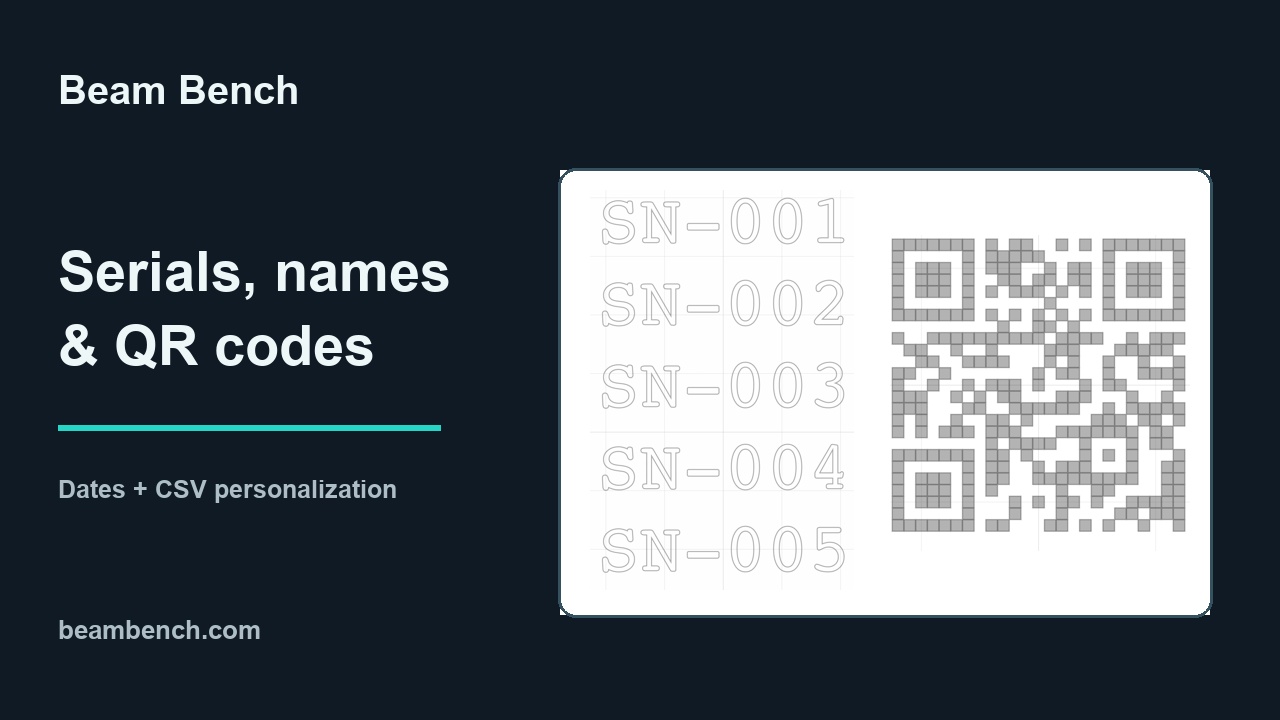 5:59Serial numbers, names from a spreadsheet, and QR codesGenerate editable serial, date and CSV text, check batch scope and counters, and create a QR code with the intended address and quiet zone.
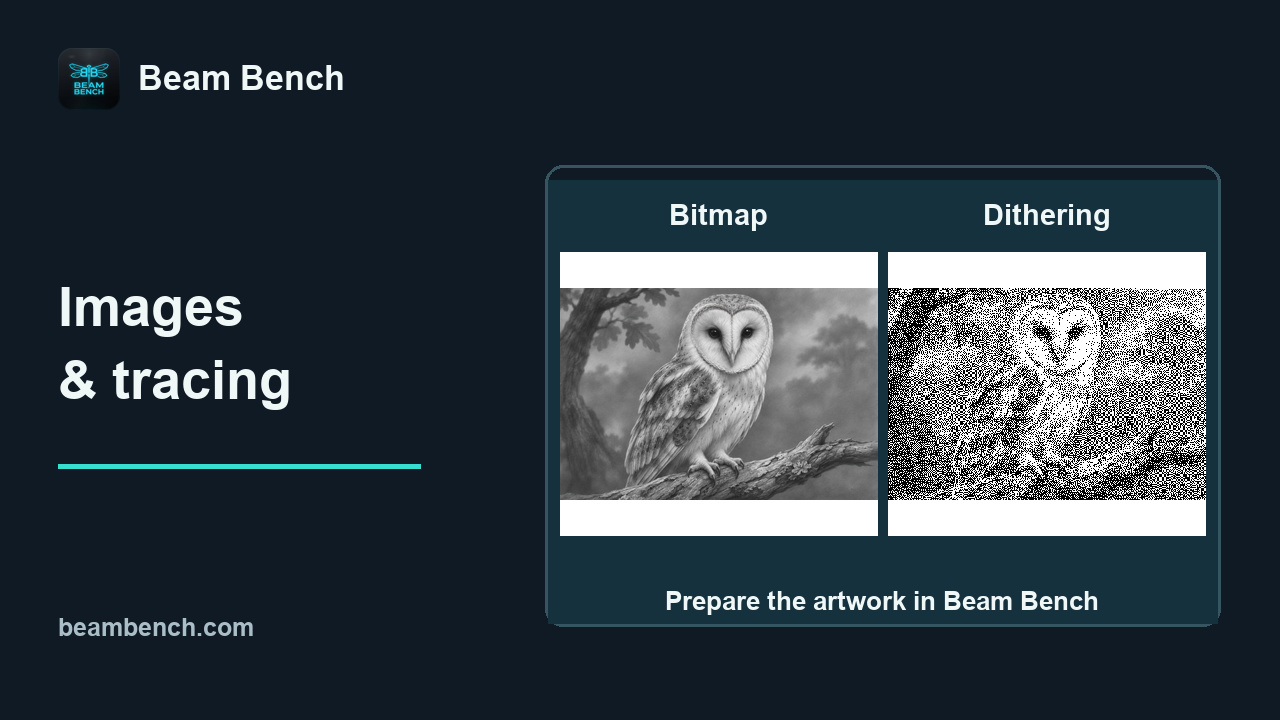 9:33Preparing images and fills for engravingChoose and inspect image processing, crop or mask artwork, compare fills, and create editable traced paths.